
Share this page


Submit entities for approval
This topic covers how to submit entities for approval using the e-signature approval process.
Submit an entity for approval
As an author, you create entities and submit them for approval.
To submit an entity for approval:
-
Import or create an entity.
-
Edit the entity as required.
-
Submit the entity.
-
In the toolbar, select the field that triggers the approval flow and set it to the required value. The field name in the toolbar depends on the configuration of the approval settings. For example, if changing the Transitions field from Draft to Approved triggers an approval flow, select Transitions in the toolbar and then select Approved.
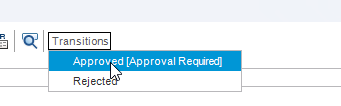
If a controlled flow is configured for the transition, (Approval Required) is displayed next to the state that triggers the approval flow. If you are not permitted to perform this action, you will not be able to change the field value.
-
When you choose a transition that is controlled by e-signature, the system opens the approval submission flow and selects the configured approval policy and levels automatically. Depending on permissions and policy configuration, you may be able to add extra approvers or levels before you submit.
In the Submit Approval Request window, view the approval policy and levels. You can view the number of required approval levels and the individuals in each project team who are permitted to approve.
-
(Optional) Add additional configured approval levels or add additional project team members or individual approvers.
-
Add your comments and submit the request.
The entity is updated to reflect that the approval process is underway, for example, Routed for Approval. The entity remains in that state until all required approvals have been completed. -
When this is your first e-signature action in the session, you are prompted to confirm your credentials before the request is submitted.
-
The system initiates the approval flow automatically based on configured policies:
-
First approval level begins
-
Configured approvers receive notifications
-
Finalized fields become read-only. For details, see Locked fields and attachments.
-
If relevant, the entity progresses through all additional approval levels defined in the approval settings.
-
-
You receive an email notification when the entity is approved. If an approver rejects, cancels, or defers the request, the author must update the entity and resubmit it for approval. This restarts the approval process. For details, see Handle rejections.
Important Note for Test Runs:
Depending on the approval policy set up by your project administrator, test run approval may use a special flow.
-
After the test run is initiated, any state transition that triggers approval is allowed only after all design steps in the test run have been carried out by one or more testers. If all steps are not carried out, the state transition is not permitted.
-
Before approvers are notified, approval notifications are sent to all testers who performed steps in the test run. After tester approvals are completed, the configured approval flow proceeds through its approval levels.

Track approvals
After submitting an entity for approval, you can view and track pending approval requests or view approval history. Approvals can be tracked at the level of an individual entity, or at a project level.
| View | Details |
|---|---|
| View approval history of an individual entity |
|
| View the status of all your submitted requests and your approvals |
|
Project-level complete audit trails are available to project administrators for broader monitoring and reporting. For more details, see Audit Trails in Configure approval settings.
Audit log
Changes to an entity are tracked in the audit log of the entity.
To view the audit log for an entity:
-
In an open entity, select History > Audit Log.
View changes across all fields or filter by a specific field.
Locked fields and attachments
When an entity is submitted for approval, certain fields may become read-only (locked) as configured by your administrator. These finalized fields cannot be edited during or after the approval process.
Depending on the approval policy configuration, attachments may also be locked during the approval process. When Attachments are locked:
-
You cannot add new attachments.
-
You cannot delete existing attachments.
-
You cannot modify attachment properties.
If you need to edit a locked field or make changes to an attachment, withdraw the approval request first. Make the changes and then resubmit.
Withdraw an approval request
If approval is in progress, you can withdraw the request to make changes before resubmitting.
-
Open the entity with an active approval request.
-
In the Approval option in the toolbar of the Details view window, select Withdraw.
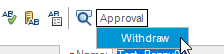
To withdraw multiple requests, in the navigation sidebar, click Approvals. In the My Requests tab, select the relevant items and click Withdraw.
-
Enter a reason for withdrawing the request and click Submit. Re-authentication is required for security.
-
The approval is withdrawn.
-
The withdrawal action is recorded.
-
Any fields locked by the controlled flow become editable again.
-
You can modify the entity as needed
-
-
If relevant, resubmit the entity for approval.
To withdraw multiple requests, see Track approvals .
Handle rejections
If your submission is rejected during the approval process, you will be notified and can take corrective action.
After a request is rejected:
-
The entity is moved to the rejected state.
-
Review the rejection reason and comments from the Approver.
-
You can now edit the entity (locked fields are editable again).
-
Make the necessary corrections.
-
Resubmit the entity for approval.
Each resubmission starts a new approval cycle and creates a new sequence of entries in the approval and audit trail records.
Revise an approved request
If your project administrator has set up the approval worfklow to allow revision of an entity after approval, you can revise an approved entity. Revising an approved entity creates a new version of the entity and updates the entity to the configured initial state. The previous approved version remain available as a historical entry.
 See also:



