Share this page


Review and approve requests
This topic covers how to review and approve or reject entities through the e-signature approval process. As an approver, you review entities and grant or reject approvals according to your assigned approval level.
Review approval requests
Review entities submitted for approval and take approval actions.
The following table provides more details about the actions that can be taken when reviewing an approval request.
| Action | Details |
|---|---|
| Approve |
|
| Reject |
|
| Reassign |
|
To approve requests:
-
Go to the Approvals page
Client Details Web In the left navigation panel, click the Approvals option
 .
.Desktop In the navigation sidebar, click the Approvals option 
-
Click the My Approvals tab. The My Approvals tab shows all requests requiring your approval.
-
Pending: Displays pending approvals with details including entity ID, type, transitions, and requestor.
-
History: Shows completed approvals with status.
To review the specific details of an entity, click the entity ID link in the grid.
-
-
Select an approval action.
To approve an individual entity:
-
Approve, reject, re-assign the entity from the Approvals > My Approvals grid or
-
Click the ID link to open the Details view of the entity. Perform an approval action.
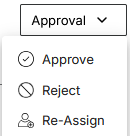
Client Details Web In the Details View, click the Approval menu in the top corner and select Approve, Reject, or Reassign.
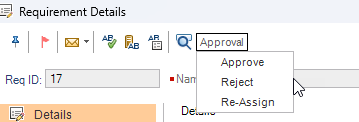
Desktop In the Details View, click Approval in the toolbar and select Approve, Reject, or Reassign.
To approve one or more entities:
-
In the Approval > My Approvals grid, select multiple items and perform bulk actions, such as approve, reject, or reassign.
-
When all required levels approve, the entity transitions to the configured final state (For example, Approved).

View history
You can view the approval history for any entity undergoing approval or one that has already been approved. Changes to an entity are also tracked.
To view approval history:
-
Open any entity with an approval flow.
-
Click the History tab. In the Approvals tab, select an option:
-
Approval Route: Shows the current and pending path of levels and approvers. This helps you understand where your request is in the approval route (For example, Level 2 out of 3 levels).
-
Approval History: Shows completed e-signature actions with timestamps, comments, and signature purposes. You can review which approvers have already signed and their comments.
-
-
View the complete audit trail with:
-
All approval levels and approvers in the route.
-
Current approval status.
-
Approval or rejection decisions with timestamps.
-
Comments and signature purposes.
-
If re-assigned, original and current assignee information.
-
To view the audit log for an entity:
-
In an open entity, select History > Audit Log. You can view changes across all fields or filter by a specific field.
Locked fields and attachments
During approval, certain fields are locked as read-only by your project administrator.
If corrections are needed, reject the request so the author can update and resubmit.
 See also: