Share this page


Manage cross references
This topic describes how to troubleshoot synchronization issues and modify cross references from the Connect user interface.
Troubleshoot cross reference issues
This section provides two use cases illustrating how to fix synchronization issues by modifying cross references directly from the user interface .
-
Use the Item Details tab to find an item, review its synchronization state, and inspect its last comparison time.
-
Use the High Water Marks tab to clear unsuccessful counts after fixing the underlying issue.
For details on how to modify a cross reference by manually editing the internal cross references file, see Edit and import cross reference files.
Use case 1: Item is not updating
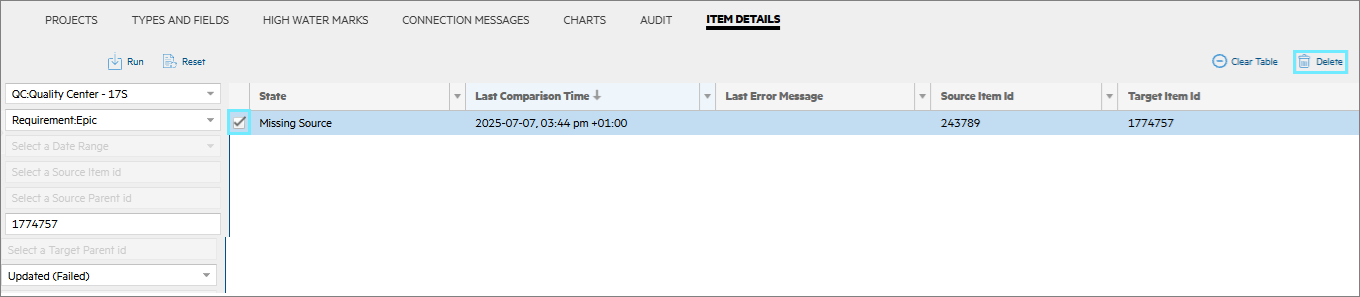
In this example, Epic 1774757 does not synchronize between Quality Center and Jira. In the Item Details tab, we query the item and check its State. Here, the state is "Missing Source".
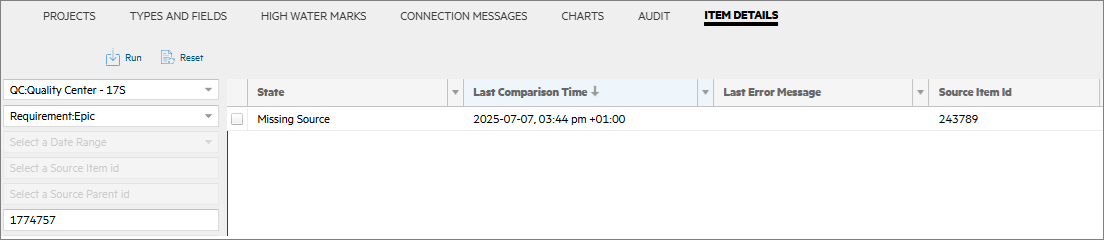
This can occur in the following instances:
-
The Jira board filter does not return the item or cannot be parsed. Keep the board filter simple, for example project = xxxx, and use a server-side filter to add criteria.
-
The server-side filter or sync criteria excludes the item. Update the filter or criteria so that it includes the item.
-
The Issue type was changed. Connect does not support the changing of issue types during synchronization; synchronizing the item as another type can create a duplicate.
-
The item was deleted from the source. Delete the cross reference so that Connect can recreate the item during a subsequent synchronization.
Use case 2: Item is failing
This use case describes a failed synchronization due to a user map issue, where a user could not be mapped to an email address.
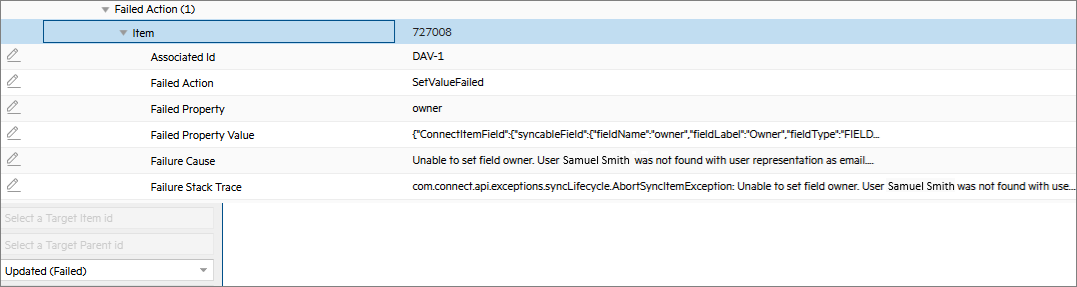
The Item Details tab shows the last comparison time of the failure. Connect retries the update three times, and then records the failure in the Count Of Unsuccessful column.
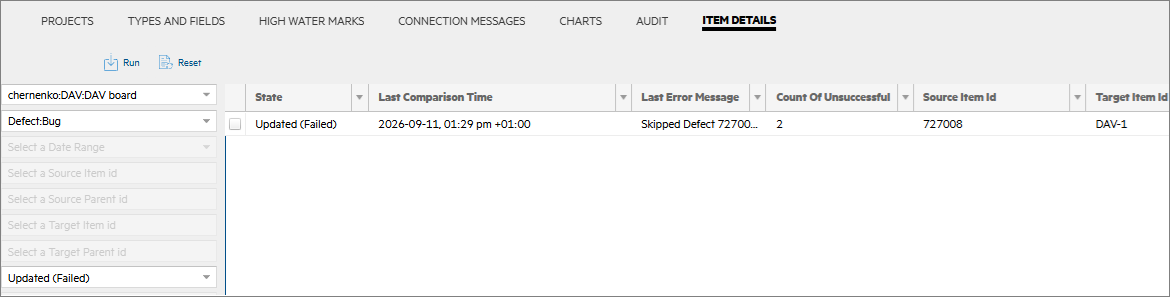
To fix this issue, you modify the underlying issue, such as adding the missing user map.
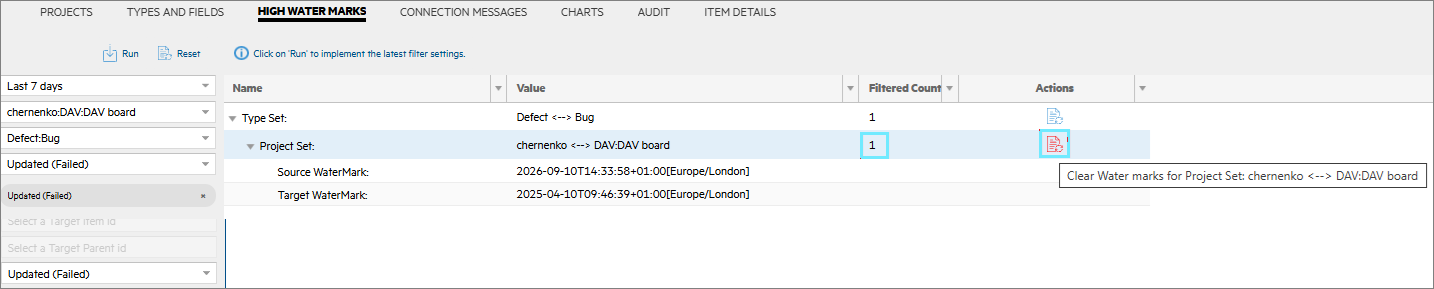
After correcting the user map, you view the High Water Marks tab. Use the Clear Water Marks button in the Actions column to clear the unsuccessful count for the affected item type and time period. Choose a period such as Today, Last 7 days, Last 30 days, or a custom range that includes the last comparison time. The Filtered Count column shows how many items will be affected. The change takes effect when the connection runs its next iteration.
Delete cross references
When a cross reference points to a missing target, delete the cross reference from the Item Details tab. Connect can then recreate the target item during a later synchronization.
In this example, Epic 1774757 has a missing target. After you delete the faulty cross reference, it is recreated in the target system during the next synchronization.
Modify cross references
You can modify a cross reference for one of the following reasons:
-
The cross reference points to the wrong item.
-
The synchronization filter or criteria was incorrect.
-
When testing a synchronization.
Select the cross reference in the Item Details tab, and update the Source Item Id, the Target Item Id, or both.