Share this page


Use-case: Syncing multiple Jira projects into a single OpenText Application Quality Management project
This use-case describes how to synchronize multiple Jira projects into one OpenText Application Quality Management project while keeping each project's Requirements and synchronization scope isolated.
Objective
The objective of this use case is to synchronize Jira Stories as OpenText Application Quality Management Requirements and Jira Bugs as OpenText Application Quality Management Defects while ensuring:
-
Each Jira project is synchronized into its own dedicated OpenText Application Quality Management Requirement branch.
-
Jira Story-to-Bug relationships are preserved as Requirement-to-Defect links.
-
Mutually exclusive Jira and OpenText Application Quality Management server-side filters restrict synchronization to the intended project.
-
A single synchronization path for each Jira project prevents duplicate OpenText Application Quality Management artifacts and cross-project synchronization.
Recommended configuration
When synchronizing multiple Jira projects into a single AQM project:
-
Create a separate Project Type Mapping (syncset) for each Jira project.
-
Configure a dedicated AQM Requirement branch for each Jira project.
-
Apply mutually exclusive synchronization criteria and server-side filters on both Jira and AQM.
-
Use dedicated Jira boards and AQM filters to enforce project isolation.
-
Ensure each syncset only synchronizes artifacts belonging to its associated Jira project.
For example:
| Jira Source Project / Board | AQM Target Folder | Purpose |
|---|---|---|
| PROJ1:PROJECT_ONE / Stories | Requirements / PROJ1:PROJECT_ONE | Isolated requirements branch |
| PROJ2:PROJECT_TWO / Stories | Requirements / PROJ2:PROJECT_TWO | Isolated requirements branch |
| PROJ1:PROJECT_ONE / Bugs | Defects | Project identity retained in UDF |
| PROJ2:PROJECT_TWO / Bugs | Defects | Project identity retained in UDF |
Step 1: Define the OpenText Application Quality Management data source
Follow these guidelines when defining a data source:
-
Use a shared OpenText Application Quality Management data source when the projects are created from the same template. If the projects use different templates, create separate OpenText Application Quality Management data sources.
-
Set the default Requirement folder to the root Requirements folder so Connect can locate synchronized requirements.
Step 2: Create OpenText Application Quality Management fields
Create the following user-defined fields before configuring Connect:
-
JIRA KEY (String): Stores the immutable Jira issue identity, such as
PROJ-123. -
JIRA PROJECT (String): Stores the project ownership value used for filtering. Populate it from the Jira Project field added by Connect.
Step 3: Create the requirement structure
Create a dedicated top-level OpenText Application Quality Management Requirement folder for each Jira project.
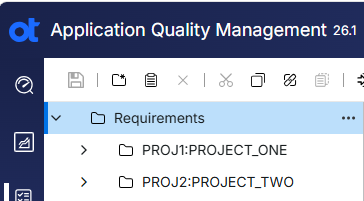
Note: The JIRA PROJECT field must be available on the Folder Requirement Type and on any additional Requirement types that participate in synchronization.
When you create each project folder, populate its JIRA PROJECT field with the corresponding Jira project, using this format:
<Jira Project Key>:<Board Name>
This lets filters return both the project folder and its synchronized child Requirements.
Step 4: Configure type and field mappings
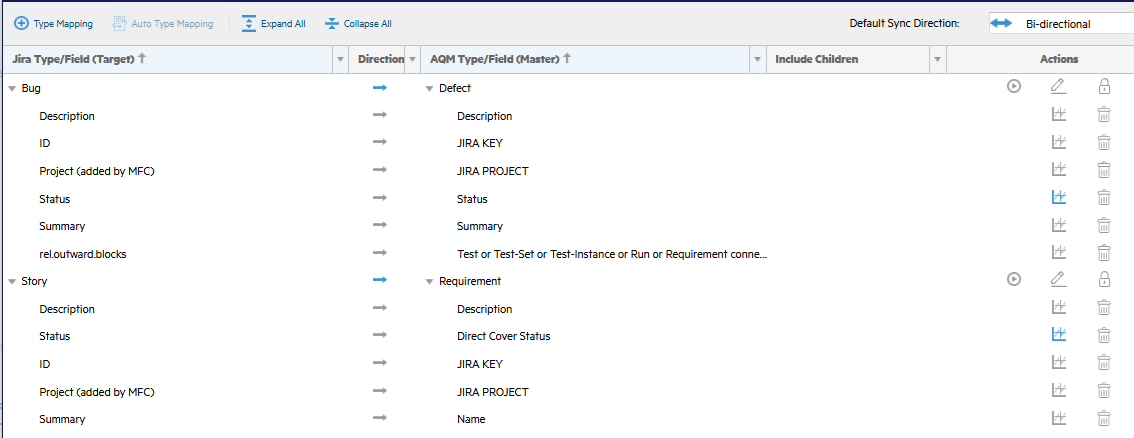
Map Jira Stories to OpenText Application Quality Management Requirements and Jira Bugs to OpenText Application Quality Management Defects. Map additional fields and values according to project requirements.
Step 5: Create project type mappings (syncsets)
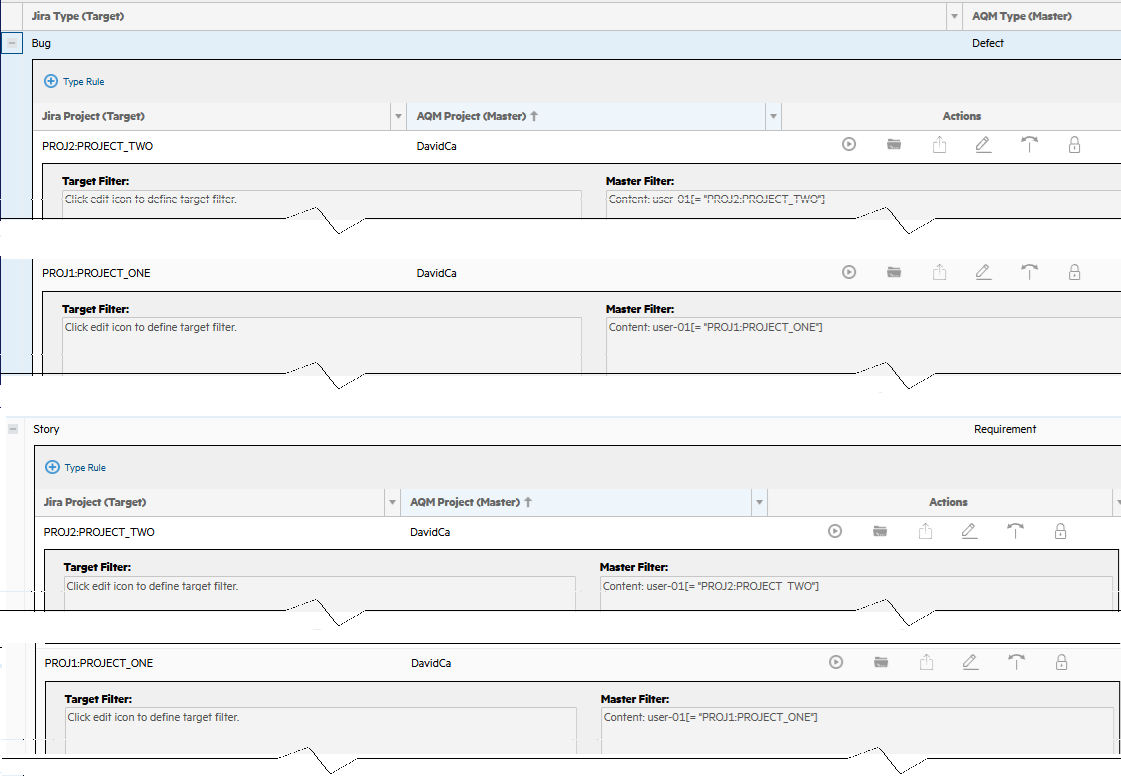
Create a separate syncset for each Jira project.
Step 6: Configure server-side filters for project isolation
Each syncset must have a dedicated Jira source filter and a corresponding OpenText Application Quality Management source filter. The filters must be mutually exclusive. This prevents the synchronization of artifacts from other Jira projects with similar mappings.
Jira server-side filters
Use a dedicated Connect board for each Jira project. For example:
project = PROJ1
Do not reuse or modify board filters after synchronization is configured. For additional criteria, use the Free-Form Filter section. For example:
project = PROJ1 AND status = "In Progress"
OpenText Application Quality Management filters
Create a separate public filter or free-form filter for each project. The recommended approach is to filter using the JIRA PROJECT field.
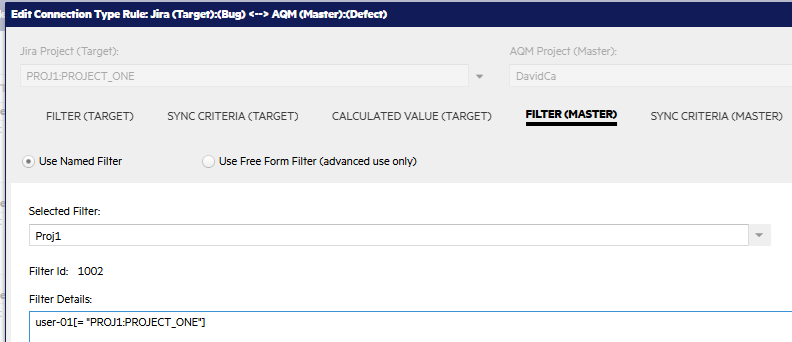
Filtering by JIRA PROJECT includes the project folder, keeps child Requirements associated with the correct branch, and prevents cross-project synchronization.
Free form filter benefits
Although Named Filters can be used, Free-Form Filters are preferable because:
-
The filter definition is stored directly in the synchronization configuration.
-
Synchronization behavior is more predictable.
-
Administrative changes to shared named filters cannot unexpectedly affect synchronization.
Step 7: Configure master calculated values
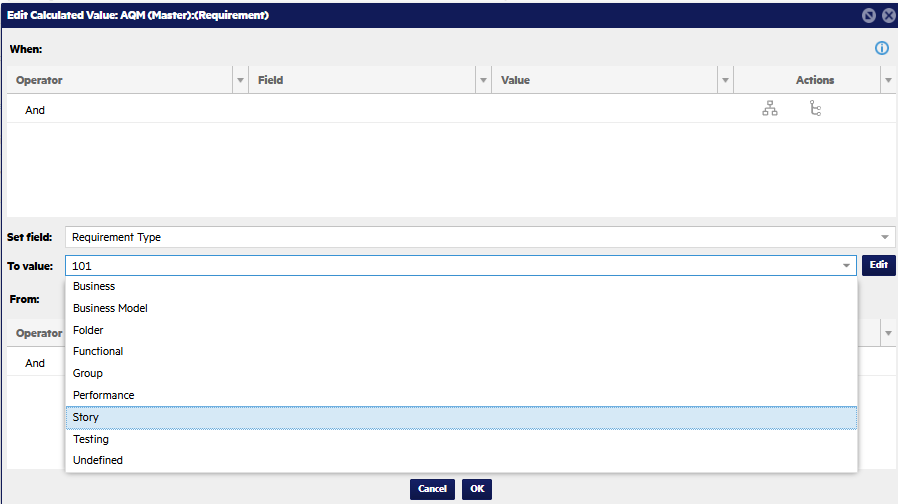
Story-to-Requirement mapping
Set the Requirement Type for the target Requirement.
Set the parent folder
Assign each synchronized Requirement to the correct project branch.
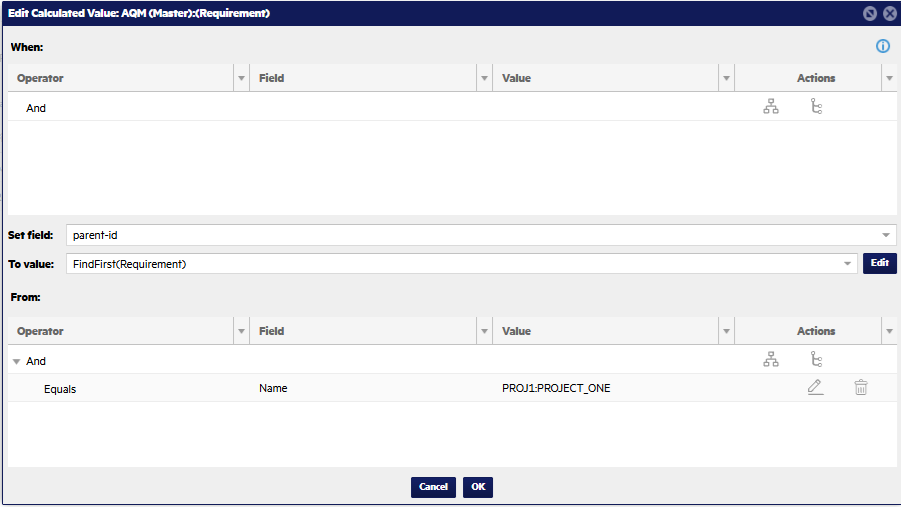
Alternatively, use a fixed Requirement ID if the project folder structure is stable.