Share this page


Manage emails
This topic describes how to set email notifications on global, connection or type levels.
Overview
Email notifications are generated when a system or synchronization error occurs. These notifications can help you troubleshoot issues. You can configure Connect to send email notifications for events on several levels.
-
Global level: For all errors. For details, see Global settings.
-
Connection level: For errors that occur on specific connections.
-
Type level: For errors that occur on specific types within a connection.
If you do not configure the settings on this tab, global settings or connection settings are used.
Manage email notifications
This section describes how to set up email notifications.
-
In the main Connect dashboard, navigate to the Email Settings tab. The tab displays the existing connections.
-
Expand the connection whose notifications you want to configure.
-
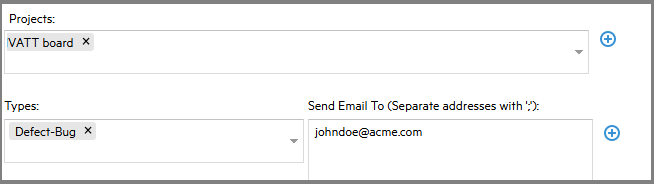
In the Projects dropdown, select one or more projects. To remove a project, click the x adjacent to the project name.
-
In the Types dropdown, select the item types whose errors should trigger a notification.
-
In the Send Email To box, specify one or more emails. Separate email addresses with a semicolon(;).
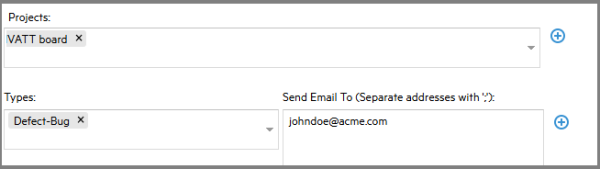
-
Click the + button in the Projects row, to configure additional Project/Email sets. Click the + button in the Types row, to add additional Type/Email sets.
-
Click the Save button in the top banner to store your changes.

Use cases
The following are several common use case combinations:
| Configuration level | Email is sent for: |
|---|---|
| Global + Connection + Type | Type-level + Connection-level |
| Global + Type (Connection not configured) | Type-level + Global-level |
| Connection + Type | Type-level + Connection-level |
| Type only | Type-level only |
 See also: