
Share this page


Install a Windows server only
Overview
-
There is already a local Oracle Enterprise with the schema. This is a binary only install.
-
You do not want to install any of the process model demo products.
-
You want to install a local server, with a local Oracle Enterprise RDBMS but without a schema, to communicate with a remote Windows or UNIX database.
A locally installed server is similar to an agent installation as it provides listener services and the dmcli command client. Common Tools are also installed. You may want to do this:
-
When the users on the local node do not have operating-system accounts on the remote database server.
-
To balance loads across both the local node and the remote database server node, as illustrated below.
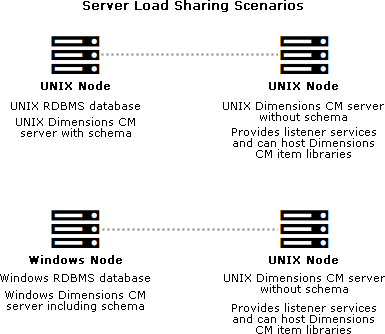
A remote database server is an RDBMS with a Dimensions CM schema installed. To enable network connections between the nodes the remote database server must be running the TNS listener. You may also need to set up an Oracle Net Service Name on the local node to access the Oracle database server. For details, see Remote Oracle Enterprise.
Install a server only
-
Run the server installer. Read and accept the license agreement.
-
For Database Type, select Oracle.
-
Select a database location:
-
Local: Use an Oracle located on the local machine.
-
Remote: Use an Oracle located on a remote machine.
-
-
Select Dimensions Server and deselect all other installation components.
-
Accept the default installation folder or choose a different one.
-
For database schema options, select Dimensions server components only.
-
Select a licensing option:
-
Specify License Server
If the AutoPass License Server (APLS) is running on a remote machine, enter the URL of the remote machine.
If APLS is running on the same machine as the Dimensions CM server, accept the following localhost URL:
https://localhost:5814/autopass
For details about configuring Dimensions CM to use APLS, see Licensing.
-
Install a 30-day evaluation license
-
-
When you are prompted to select an Oracle installation, click Next.
-
Enter the OS account name and password for the CM system administrator. Default:
dmsys -
(Optional) Enter the host name of your email server.
-
Accept the default port number for the Tomcat server (
8080) or enter a different one if it is in use. Some software is hard-coded to port 8080 and cannot be reassigned. For details, see Use TCP/IP ports. -
Click Install. When the installation is complete, click Finish.



