Share this page


OPLG configuration tool
The on-premises load generator (OPLG) configuration tool lets you configure Windows on-premises load generators.
Overview
When you install an on-premises load generator, the configuration tool is automatically launched. If you skipped the configuration, you can run it manually by selecting Configure Load Generator from the Start menu on the load generator machine.
General tab
Enter your load generator key and tenant credentials: client ID and client secret. For details, see Create access keys.
| Item | Description |
|---|---|
| Key |
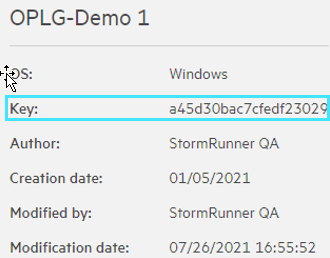
An on-premises load generator key is created when you add an on-premises load generator in Assets > Load Generators.
|
| Credentials |
Your OpenText Core Performance Engineering client ID and client secret. Note: For tenants created in version 24.3 or earlier, username and password authentication continues to work, although this method has been deprecated and will no longer be valid once enforcement begins in a future release. |
| Tenant | Your tenant ID. |
Misc tab
Define a proxy URL in the Misc tab.
| Item | Description |
|---|---|
| Proxy |
Specify the proxy URL. The URL should include the protocol, host name, and port number. Example: |
| Server |
Specify the URL of the server used for accessing OpenText Core Performance Engineering. You can copy the URL from the address bar of the browser in which you opened the server. For example, if the URL in the browser address bar is https://myserver.com/home/?TENANTID=208294383&projectId=1, copy https://myserver.com. |
| Log level |
Specify the level of log reporting.
|
| Advanced |
If your proxy requires authentication, select the Advanced tab to enter your credentials. |
Environment tab
The Environment tab shows a list of the versions of agent components.
Update tab
The Update tab provides version information and lets you check for available updates.
| Item | Description |
|---|---|
| Current version | The version of the On-premises Load Generator configuration tool currently installed. |
| Check for updates | Check for available updates to the On-premises Load Generator configuration tool. |
| Download | Download the latest version of the On-premises Load Generator configuration tool. |
Options tab
The Options tab lets you define parameters and their values for customization and debugging.
Below is a list of common examples.
| Configuration option | Description | Values |
|---|---|---|
| SRL_AGENT_KEEP_VUSER_LOGS |
Retain Vuser log files. The logs are stored on the load generator machine, in a subfolder with the inj_o_ prefix under the %TEMP% folder. Note: Retaining these log files uses a lot of disk space. Deactivate this option when it is no longer needed. |
True/False |
| SRL_AGENT_LOAD_EXTRA_CERTS |
Load additional security certificates. For details, see Certificate issues. |
True/False |
| SRL_AGENT_DISABLE_TLS_1_3 | Deactivate TLS 1.3. For details, see TLS 1.3. | True/False |
| no_proxy | If you have configured the use of a proxy in the Misc tab, you can define specific hosts to be bypassed by the proxy. You can enter multiple values separated by commas. |
Domain name or IP address For example: 172.28.240.1, myserver1, appserver.testing.com |
For changes to take effect, save the configuration and restart the agent.
For more information, see Troubleshooting OPLGs.