Share this page


Troubleshoot OPLGs
This topic provides solutions for common OPLG issues.
Authentication failure
Problem: When connecting an OPLG, you receive one of the following messages:
-
HTTP status code: 403
-
Failed fetching token, credentials failed
-
Incorrect password or user name
Reason: The configured username or password is incorrect, or the account may be locked.
Solution: Check the username and password, or wait for the account to be unlocked.
Note: Federated accounts are not supported.
Failed to connect to the connectivity testing service
Problem: When you click Save & Test in the OPLG configuration tool, the tool cannot connect to the network connectivity testing service and displays the message "Failed to connect to the connectivity testing service".
Solution:
-
Contact your network or security team to configure the firewall to allocate (dedicate) the IP of the destination. For more information, see Dedicated IPs OPLGs behind a firewall.
-
If the message includes "unsafe legacy renegotiation", it means that some services between OPLG and OpenText Core Performance Engineering do not work properly with OpenSSL version 3. Contact your network or security team or perform the following:
-
In the OPLG configuration tool, select the Options tab, and set the
SRL_AGENT_ENABLE_OPENSSL_COMPandSRL_AGENT_NO_CONN_TESTINGoptions to true. For details, see the Options tab. -
Save the configuration.
-
Restart the agent.
-
OPLG cannot connect
Problem: The OPLG cannot connect to OpenText Core Performance Engineering.
Solution: Check the network connection between the OPLG and OpenText Core Performance Engineering. If the OPLG status is Not Connected, the test run reports an error. Make sure that outbound communication over port 443 is enabled.
If you receive system error -1030, check the network connection between the OPLG and the cloud (AWS).
If your organization's security or firewall requires static IP addresses on an allowlist, submit a service request to request them. For details, see Dedicated IPs OPLGs behind a firewall.
If the OPLG uses a Web proxy to connect OpenText Core Performance Engineering, enter the proxy details in the Misc tab of the OPLG configuration tool. For details, see the Misc tab.
Failed to save configuration
Problem: The OPLG configuration tool fails to save the configuration to a file.
Solution: Start the configuration tool as an administrator, and then save the configuration again.
Certificate issues
Problem: When connecting to an OPLG, you receive one of the following messages:
- Self-signed certificate in certificate chain
- Unable to find local issuer certificate
- Hostname/IP does not match certificate's altnames
Reason: These are the typical errors when the HTTPS connection is intercepted by the network or security infrastructure. This issue is apparent when you open OpenText Core Performance Engineering in your browser on the OPLG. Note that the certificate for “*.saas.microfocus.com” is issued by an internal certificate authority in your organization.
Solution: Contact your network or security team to allocate (dedicate) the IP of the destination.
Alternatively, perform the following:
-
Obtain the internal CA certificates (all intermediate and root CAs) in .pem format.
-
Copy the .pem files into the %SRL_HOME%\certs folder.
-
On the Options tab, add the
SRL_AGENT_LOAD_EXTRA_CERTSparameter and set it to true. For details, see the Options tab. -
Save the configuration and restart the agent.
Cannot connect to VTS server when proxy is configured
Problem: Vusers running on an OPLG fail to connect to the VTS server when a proxy is configured. A typical error message is “lrvtc_connect: Failed to connect to the server”.
Solution: Perform the following actions:
-
Open the load generator configuration tool's Options tab. For details, see the Options tab.
-
Set
no_proxyto the IP address or domain name of the VTS server.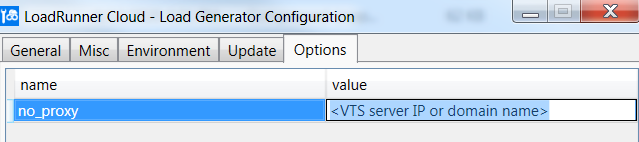
-
Optionally, enter additional domains or IPs separated by commas. For example:
1.2.3.4, myvtsserver1, myvtsserver2. -
Save the configuration and restart the agent.
Test stuck in Initializing stage
The following table lists errors, causes, and possible solutions when a test is stuck in the Initializing stage.
| Error number | Cause | Solution |
|---|---|---|
|
-1007 -1008 |
Vusers fail to start. |
Manually run your script on an OPLG to see if it can be replayed successfully. For example: Common problems include issues in script itself, conflict with other software installed on the machine, blocked by security policy. For more information, see Install and configure an OPLG on Windows. |
| -1017 | Some required script dependencies are missing. |
Install and configure dependencies on the OPLG according to the scripts' requirements. For example, to run SAP GUI scripts, the SAP GUI client must be installed and properly configured. |
| -1030 | The OPLG is unable to connect to OpenText Core Performance Engineering runtime control components. | Ask your network or security team to configure the firewall to allocate (dedicate) the URL of the destination. For more information, see Dedicated IPs OPLGs behind a firewall. |
TLS 1.3
If an OPLG is unable to use TLS 1.3, perform the following:
-
Open the OPLG configuration tool's Options tab. For details, see the Options tab.
-
Set
SRL_AGENT_DISABLE_TLS_1_3to true.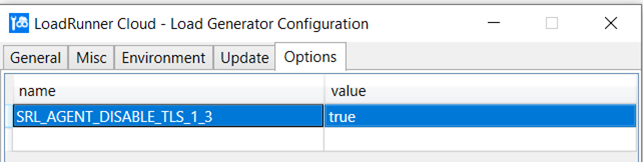
-
Save the configuration and restart the agent.
Disk space issues
Problem: An error indicates that there is not enough disk space when installing an OPLG, even though sufficient disk space is available.
Solution 1:
Restart the machine and run the OPLG installation again.
Solution 2:
Download and run the latest version of the SetupOneLG.zip file.
-
To download the setup file, in the banner go to Tools and integrations > Agents > OPLG.
-
Extract the downloaded SetupOneLG.zip file. This extracts the SetupOneLG.exe file to a local folder.
-
Using 7zip, extract the contents of SetupOneLG.exe. This creates a folder containing the setup.exe file.
-
Run setup.exe.