Share this page


Deploy with on-premises load generators
This topic explains how to configure on-premises load generators (OPLGs) for a load test and distribute Vusers across them.
Configure OPLGs for a load test
In the Load profile page, indicate where to run each script: Cloud or On-premises. For details, see Distribution logic.
The following steps describe how to assign OPLGs to a test.
To configure OPLGs for a load test:
-
From the Navigation menu
 , select Load tests and open a load test.
-
In the Load profile pane, select a script and set Location to On-premises. If the script is not listed, click the Add from Assets button
 to add one or more scripts from the repository.
-
Click the Load distribution button
 in the sidebar and select the On-premises tab.
-
Click the Add from Assets button + to select OPLGs for the test, or the Create button
 to create an OPLG.
-
If required, manage the OPLGs assigned to the test:
-
To edit an OPLG, select it and click Edit. You can customize the maximum number of Vusers for each supported protocol. For details, see Manage OPLG assets.
-
To remove an OPLG from the test, select it and click the Delete button
 . The OPLG is removed from the test but remains in Assets.
-
-
Select an assignment method: Simple or Advanced. To use manual Vuser distribution, Enable manual Vuser distribution for on-premises load generators must be selected in Test settings. For details, see Configure test settings.
Note: If you change the location of a script that is already assigned to an OPLG, the script is automatically unassigned from the OPLG.
-
For information about the scheduling modes, see Scheduling modes.
For more information, see Tests.
Assign Vusers to OPLGs
You can assign the number of Vusers per OPLG manually or automatically.
To manually assign the number of Vusers:
-
Click the Load distribution button
in the sidebar and select the On-premises tab. -
Select the relevant OPLG.
-
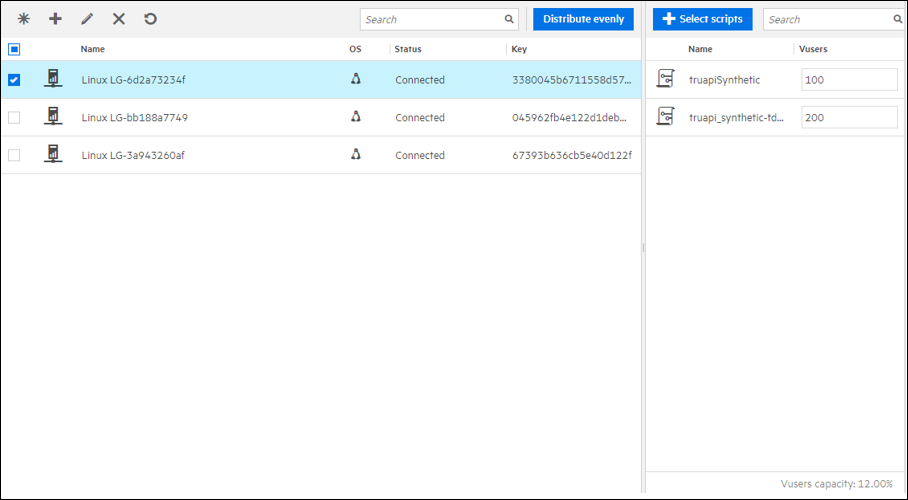
Enter the number of Vusers to assign in the box adjacent to the script name.
Note: Make sure that the number of Vusers that you assign to your script matches the total number of Vusers in your load test. For example, if the script has 500 Vusers, you must manually assign all 500. In addition, the number of Vusers defined in your test must not exceed the maximum number of Vusers defined in your Vuser license.
To automatically assign an equal amount of Vusers to OPLGs:
-
Open the load test's Load distribution page and go to the On-premises tab.
-
Click Distribute evenly. OpenText Core Performance Engineering automatically distributes Vusers evenly over all assigned OPLGs, according to the script assignment configured in the test.
Apply simple assignment
With the Simple assignment method, indicate which load test scripts run on which OPLGs.
In the Load distribution > On-premises page, the Assigned Scripts pane shows the scripts assigned to the selected OPLG.
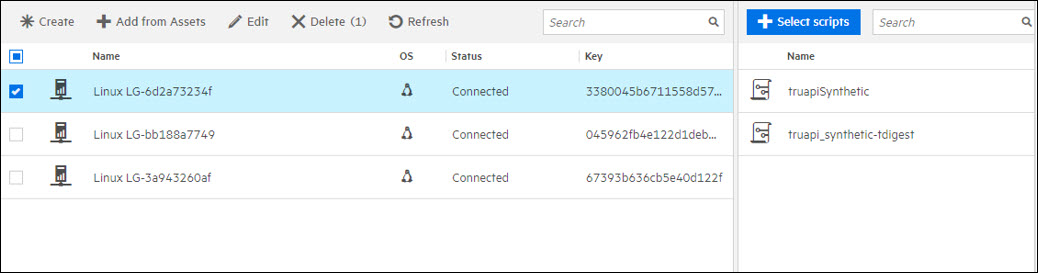
Click the Select scripts button + to assign or unassign scripts to the selected OPLG. To assign a new script, select it and click OK. To unassign a script, clear its selection and click OK.
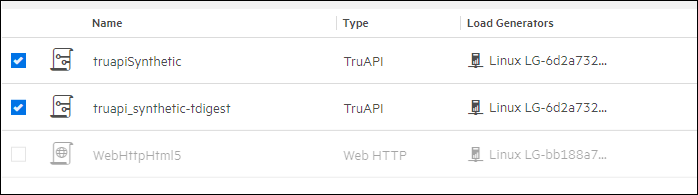
Note: When using the Simple assignment method, you can assign only scripts of the same type to a load generator. If a script is already assigned to a selected load generator, only scripts of the same type are available for assignment. Scripts of other types are unavailable.
Apply advanced assignment
When using the Advanced assignment method, you can assign multiple scripts of different types to a load generator. This gives you full control over how Vusers from different protocols are distributed.
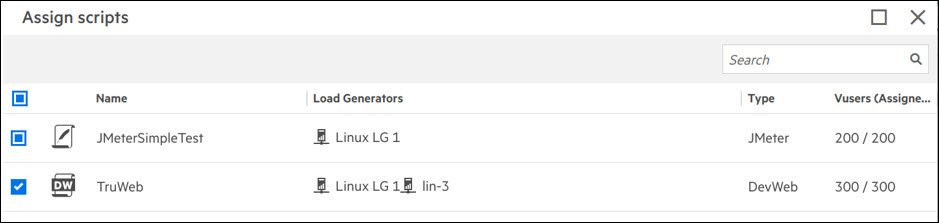
You can also set the number of Vusers per script to run on specific OPLGs. Before setting the number of Vusers, make sure to assign each script to an OPLG, as described in Apply simple assignment.
After assigning the scripts, set the number of Vusers either manually or automatically. For details, see Assign Vusers to OPLGs.
Note:
-
If multiple protocols have been assigned to a load generator and you switch from Advanced to Simple mode, all assignments for that load generator are cleared.
-
If advanced scheduling is enabled for on-premises scripts and the total Vuser ramp-up is higher than the entitled license capacity, advanced assignment will not work.
View assigned Vusers
To see the number of Vusers assigned per script, click the Select scripts button + and refer to the Vusers column.

When assigning multiple scripts of different types to a load generator, hover over the Vusers capacity text to display the capacity and distribution ratio for each script type.
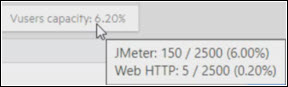
For protocols supported on OPLGs and the default and recommended limits, see the table in Cloud LG infrastructure capacity.
Vuser distribution guidelines
The following guidelines apply to Vuser distribution when using OPLGs:
-
The even distribution feature affects only Vusers for scripts assigned to the test's OPLGs.
-
You can manually adjust the distribution after the automatic calculation.
-
If a load generator is not limited to a number of Vusers less than its even portion, the even portion is assigned. For example, where both LG-1 and LG-2 are allowed to run 500 Vusers, the distribution is as follows.
Script name # of Vusers LG assignment # of Vusers running after clicking Distribute evenly Script-A 100 LG-1 100 on LG-1 Script-B 200 LG-2 200 on LG-2 Script-C 300 LG-1, LG-2 150 on both LG-1 and LG-2 -
If an OPLG is limited to a number of Vusers less than its even portion, the maximum number of Vusers is assigned. For example, if LG-1 is allowed to run 30 Vusers and LG-2 500 Vusers (the even portion is 50; 100 Vusers divided by 2 LGs), the distribution is as follows.
Script name # of Vusers LG assignment # of Vusers running after clicking Distribute evenly Script-A 100 LG-1, LG-2 30 on LG-1 and 70 on LG-2 -
When assigning multiple scripts of different types to a load generator, the even distribution feature assigns Vusers as evenly as possible to all OPLGs. In doing so, it also takes the OPLG's total capacity into account.
LG \ Script TruClient-1 (Total 20 Vusers) Web-1 (Total 3000 Vusers) Total Capacity LG-1 0 2500 80.00% (2000/2500) LG-2 10 833 99.99% (10/15 + 833/2500) LG-3 10 167 73.35% (10/15 + 167/2500) In the example above, each LG is limited to a maximum of 15 TruClient Vusers or 2,500 Web Vusers. After assigning 20 TruClient Vusers to LG-2 and LG-3, it is no longer possible to evenly distribute 3,000 Web Vusers to all three LGs, because 10/15 + 1000/2500 ~= 107% on LG-2 and LG-3, which exceeds 100%.