Share this page


MCP integration
You can trigger DevWeb tasks from an IDE AI agent connected to the DevWeb MCP server.
About DevWeb MCP server
The Model Context Protocol (MCP) is an open standard that enables AI assistants to securely connect with external tools and data sources. DevWeb installation includes the DevWeb MCP server. This MCP server provides the tools for the external AI agent to connect to the local DevWeb resources, and trigger various actions. For example, in the AI agent chat, you can request the creation of a DevWeb script.
The AI agent provides guidance for recording, generation, and replay. From version 26.3, it also provides assistance with writing scripts, including use of the DevWeb JavaScript SDK .
The supported tools include:
-
Initiate a DevWeb script in the current workspace/project folder.
-
Record a DevWeb script.
-
Generate a DevWeb script from a HAR file.
-
Generate a DevWeb script from a Swagger file. For details, see Integrate Swagger definitions using the MCP server.
-
Run DevWeb script in Single mode.
-
Run DevWeb script in Single mode with iterations.
-
Run DevWeb script in Load mode.
-
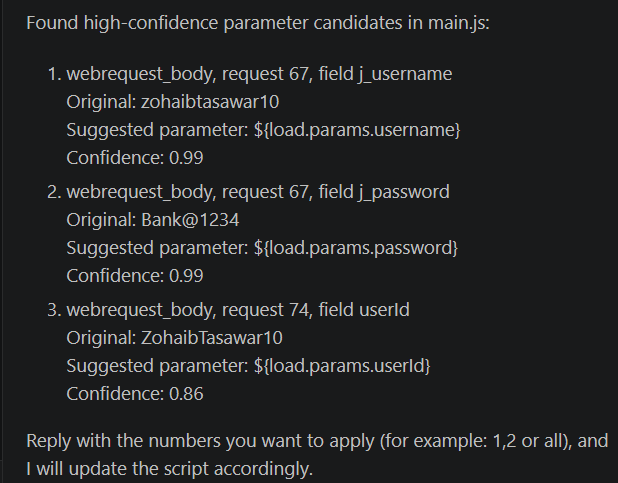
Identify high-confidence parameterization candidates, such as user names, passwords, user identifiers. (Supported from version 26.3 as a Beta feature.)
The MCP server also provides write access to the following DevWeb files:
-
rts.yml
-
scenario.yml
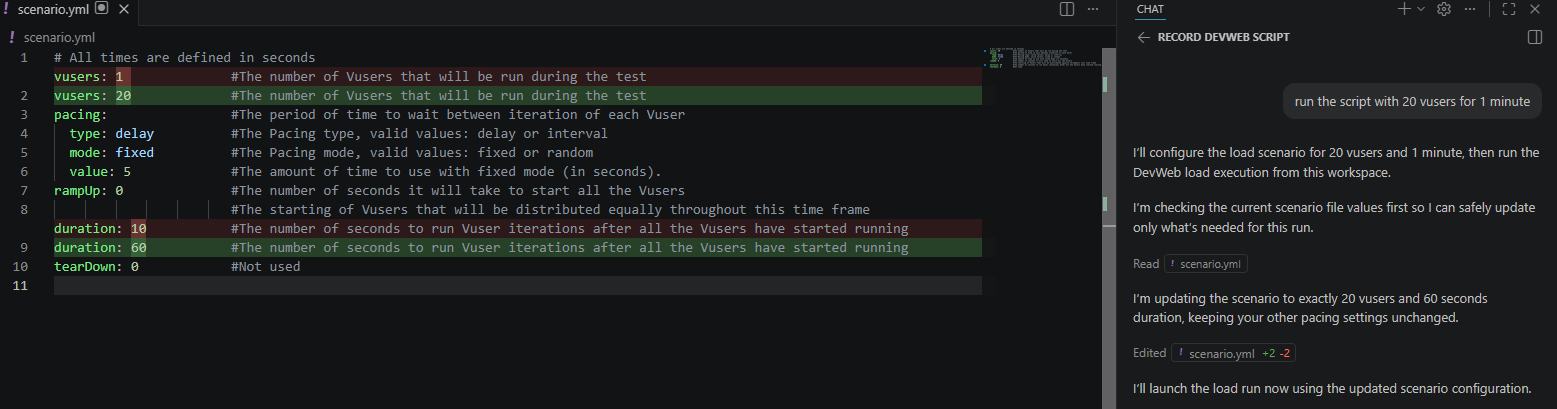
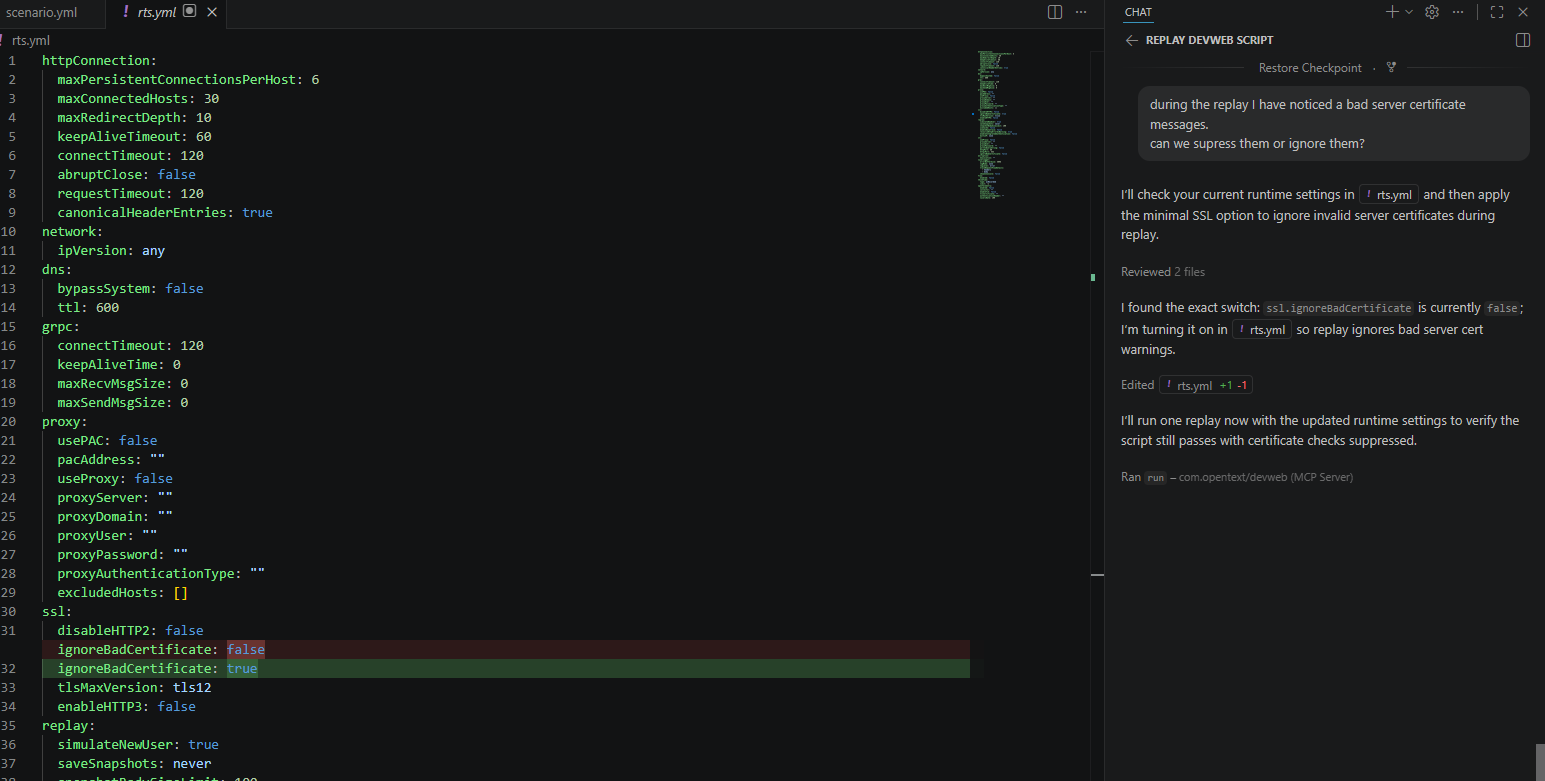
For example, the AI agent can change the number of Vusers in the scenario.yml file, based on the user request; or change a value in the rts.yml file that is causing a run error.
The MCP server should work with any IDE AI agent that supports MCP, but has been specifically tested on Microsoft Visual Studio Code with GitHub Copilot.
Note: The MCP server supports the stdio transport only. Streamable HTTP transport is not supported.
Start the MCP server
In VS Code, you can connect to and start the MCP server installed on the local machine.
For details on working with DevWeb in VS Code, see Scripting with Visual Studio Code.
To start the MCP server in VS Code:
-
In your locally installed VS Code, open a <workspace>/.vscode folder.
Note: To use MCP server with all workspaces, open a folder as follows:
-
Windows: %APPDATA%\Code\User\
-
macOS: $HOME/Library/Application\ Support/Code/User/
-
Linux: $HOME/.config/Code/User/
-
-
Create an empty mcp.json file in the folder.
-
Paste the following into the mcp.json file and save the file
Copy code{
"servers": {
"MCP Server - PE for Developers": {
"type": "stdio",
"command": "${env:DEVWEB_PATH}/DevWebMCP"
}
}
} -
To start the MCP Server In VS Code, click Start in the mcp.json file. Alternatively, select Extensions > MCP Server - PE for Developers, and start the server from there.
Tip:
-
Run a command in VS Code using the argument DevWebMCP.exe -- help to obtain the following:
-
Code ready to copy and paste into the empty mcp.json file.
-
A list of the tools supported by the MCP server.
-
-
DevWeb scripts sometimes include additional files. If the script folder includes tasks.json, it might cause conflicts with the MCP server tasks. To avoid this, in the chat box click Configure Tools
 , and then disable the runTasks tool.
Using DevWeb tools via the AI agent
Once the MCP server is running, you can select an AI agent chat in the VS Code chat box (for example, Copilot agent), and enter requests. The agent uses keywords to interpret the entered information, and then triggers the correct MCP server tool to run it.
The following table demonstrates some scenarios.
| Scenario | Details | Example |
|---|---|---|
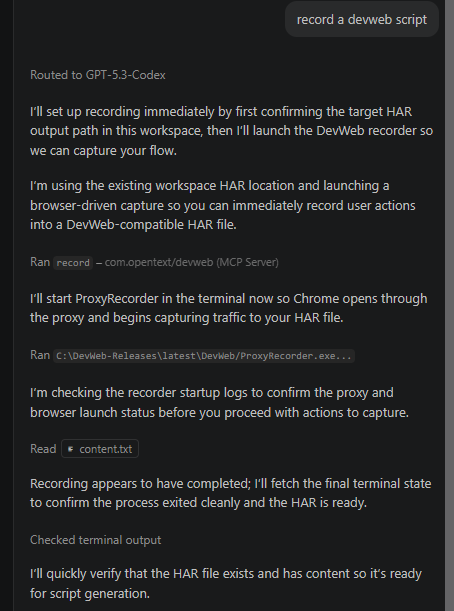
| Record a script |
In the agent chat you enter: Record a DevWeb script The request triggers the DevWeb Proxy Recorder to record the script. You follow the instructions in the chat to successfully produce the script. |
|
| Run a script |
In the agent chat you enter: Run the script in load mode with 20 Vusers for 1 minute DevWeb MCP updates the scenario.yml file so that it can run using the requested parameters. The agent asks you to confirm the changes, and then runs as requested. |
|
| Find and correct an error |
Your script fails to run, and you ask the agent to solve the issue. The agent finds a change needed in the rts.yml properties, and asks if you want to keep the change. The script runs again without an issue. |
|
| Identify parameterization candidates |
Note: Supported from version 26.3 as a Beta feature. You ask the agent to find high-confidence parameter candidates in the main.js file. The agent analyzes the DevWeb script and for each detected candidate returns:
|
|