Share this page


MCP integration
You can trigger DevWeb tasks from an IDE AI agent when it is connected to the DevWeb MCP server.
About DevWeb MCP server
DevWeb installation includes the DevWeb MCP server, providing a channel using the Model Context Protocol (MCP) to perform tasks from an AI agent.
The MCP server provides the tools for the external AI agent to connect to the local DevWeb resources, and trigger various actions. For example, in the AI agent chat, you can request the creation of a DevWeb script.
The supported tools include:
-
Initiate a DevWeb script in the current workspace/project folder.
-
Record a DevWeb script.
-
Generate a DevWeb script from a HAR file.
-
Generate a DevWeb script from a Swagger file.
-
Run DevWeb script in Single mode.
-
Run DevWeb script in Single mode with iterations.
-
Run DevWeb script in Load mode.
The MCP server also provides write access for some DevWeb files: rts.yml and scenario.yml. For example, the AI agent can change the number of Vusers in the scenario.yml file based on the user request, or find and change a value in the rts.yml file that is causing a run error.
The MCP server should work with any IDE AI agent that supports MCP, but has been specifically tested on Microsoft Visual Studio Code with GitHub Copilot.

Start the MCP server in VS Code
In VS Code, you connect to and start the MCP server installed on the local machine.
For details on working with DevWeb in VS Code, see Scripting with Visual Studio Code.
To start the MCP server in VS Code:
-
In your locally installed VS Code, open a <workspace>/.vscode folder.
Note: To use MCP server with all your workspaces, open a folder as follows:
-
Windows: %APPDATA%\Code\User\
-
macOS: $HOME/Library/Application\ Support/Code/User/
-
Linux: $HOME/.config/Code/User/
-
-
Create an empty mcp.json file in the folder.
-
Paste the following into the mcp.json file and save the file
Copy code{
"servers": {
"MCP Server - PE for Developers": {
"type": "stdio",
"command": "${env:DEVWEB_PATH}/DevWebMCP"
}
}
} -
To start the MCP Server In VS Code, click Start in the mcp.json file, or find MCP Server - PE for Developers in the Extensions list and start the server from there.
Tip:
-
You can copy the code for the mcp.json file, and view a list of the tools supported by the MCP server, by running a command in VS Code using the following argument: DevWebMCP.exe -- help
-
DevWeb scripts sometimes include additional files. If the script folder includes tasks.json, it might cause conflicts with the MCP server tasks. To avoid this, in the chat box click Configure Tools
 , and then disable the runTasks tool.
Using the DevWeb tools via the AI agent
Once the MCP server is running, you can enter requests in the AI agent (for example, Copilot) chat. The agent uses keywords to interpret the entered information, and then triggers the correct MCP tool to run it.
Examples:
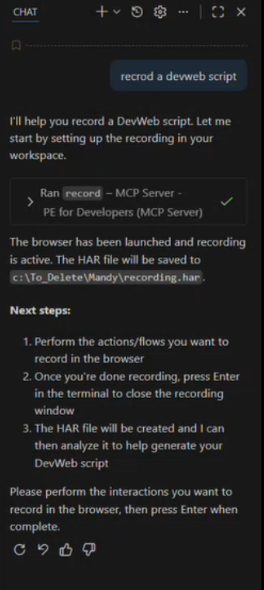
Record a script
In the agent chat you enter: Record a DevWeb script
The request triggers the DevWeb Proxy Recorder to record the script. You follow the instructions in the chat to successfully produce the script.
Run a script
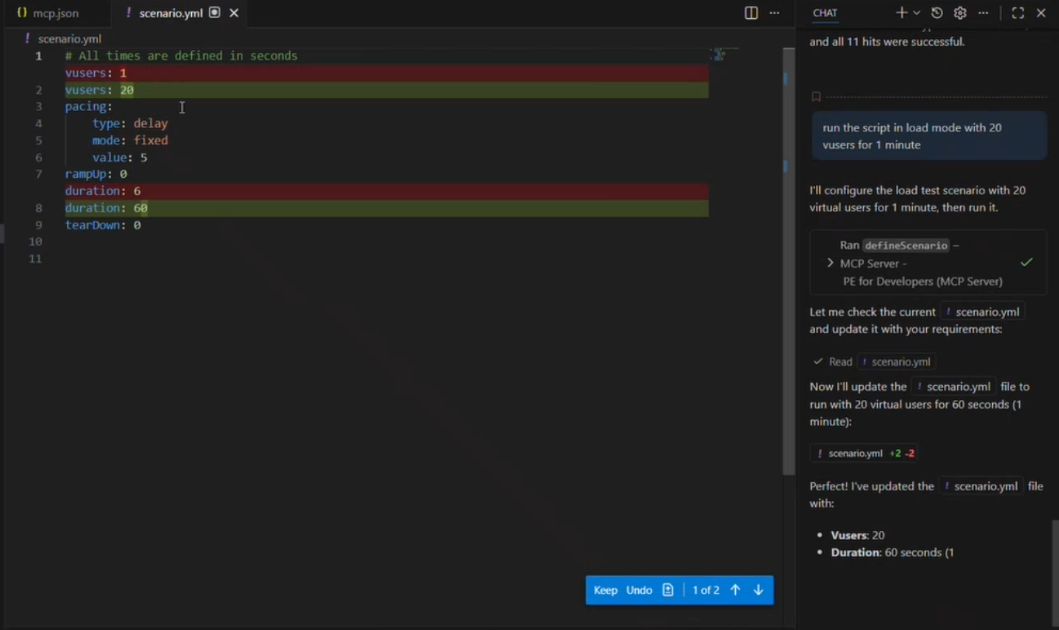
In the agent chat you enter: Run the script in load mode with 20 Vusers for 1 minute
DevWeb MCP updates the scenario.yml file so that it can run using the requested parameters. The agent asks you to confirm the changes, and then runs as requested.
Find and correct an error
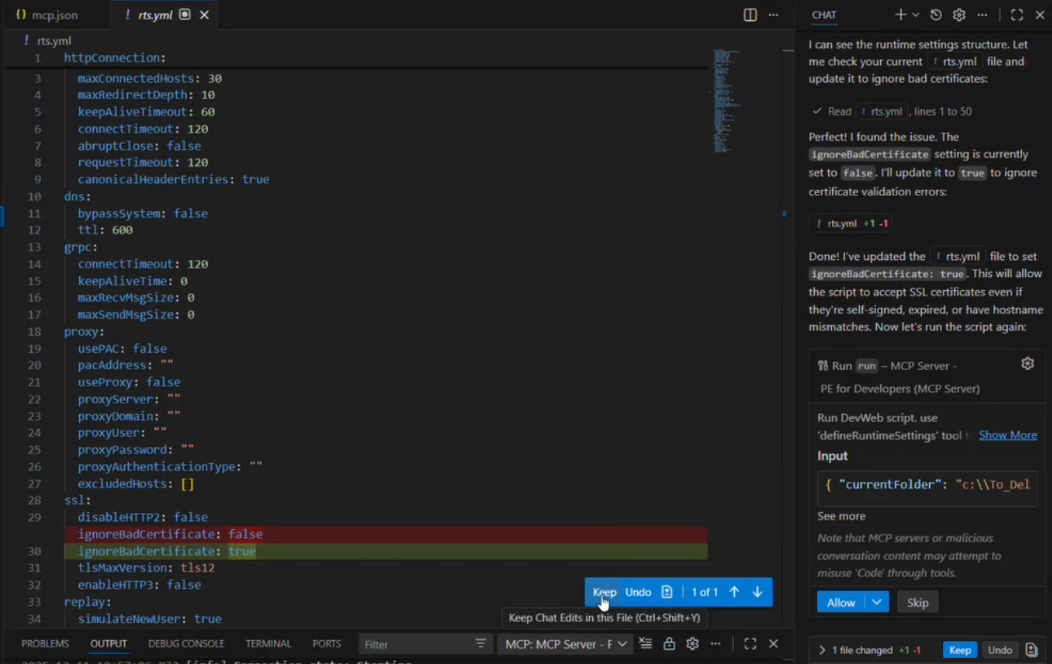
Your script fails to run, and you ask the agent chat to solve the issue. The agent finds a change needed in the rts.yml properties, and asks if you want to keep the change. The script runs again without an issue.
 See also: