Share this page


Dynamic filters
Dynamic dashboard filters let you keep the data scope in sync across multiple widgets.
Overview
Dynamic dashboard filters allow you to link multiple widgets to the same filter categories. When you adjust the settings of a filter category, all the linked widgets update their data scope accordingly.
Each new dashboard starts with a default list of dynamic filter categories: Release, Sprint, Milestone, Team, and Program. The default filter categories are inactive until they are used for the first time in a widget's filter.
You can remove any filter category from the dynamic filters pane, and reorder them.
New filter categories are added to the dynamic filters pane after you define them for the first time in a widget's filter.
Supported field types
-
The following field types can be used in dynamic filters: Lists, reference fields
-
The following field types cannot be used in dynamic filters: Date, string, numeric, boolean
Context filters and dynamic filters
The context filters contain filter categories for Release, Sprint, Milestone, and Date range. Release, Sprint, and Milestone can also be filtered using dynamic filters. If the same categories are set in both filters, conflicting filters can result in hiding more data than you intended. To avoid conflicts, after you start using dynamic filters, it is recommended to clear and hide the context filters.
To clear and hide the context filters bar:
-
On each of the context filters, click the Clear button x on all the values until only All Releases and All Milestones are listed.
-
On the dashboard's main toolbar, click the More… button.
-
Select Hide context filter.
Watch a demo

Create and assign dynamic filter
Dynamic filters are created inside a widget's data filter. After a dynamic filter is created, the same dynamic filter can be assigned to other widgets.
To create and assign a dynamic filter:
-
In a dashboard, open a widget's configuration.
-
In the widget's configuration, select the Data tab.
-
Click the Add filter button. The Advanced filters dialog box opens.
-
On a filter row, in the Field box, select a list or reference field that you want to filter by.
-
In the Operator box, select the is or is not operator.
-
Expand the Value box (1).
The values list is split into two sections: Dynamic filters and Static values.
In the Dynamic filters section, click Add new (2). Type a name for the new filter that will be displayed in the dynamic filters pane (3). The name does not need to match the field name.
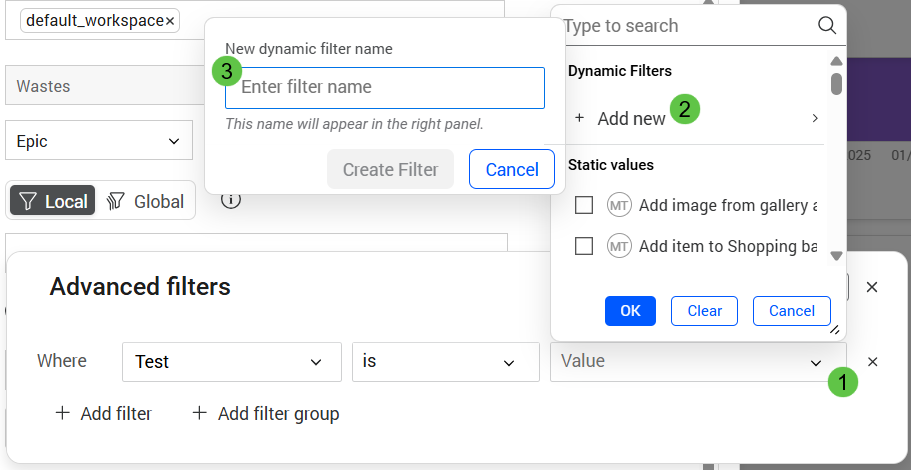
Multiple dynamic filters can be created for the same field, so that different groups of widgets can be assigned to the different filters.
The new dynamic filter is added to the dynamic filters pane after you save the widget configuration.
-
To assign an existing dynamic filter, in the Dynamic filters section of the field values, select one of the existing dynamic filters.
Selecting a dynamic filter automatically clears any other static value or dynamic filter selections of the same field.
Set dynamic filter values
After you have created and assigned dynamic filters to widgets, you can set filter values. Setting the values automatically adjusts the data in the widgets linked to the filters.
To set dynamic filter values:
-
To open the Dynamic filters pane, click the Dynamic filters button
 .
. -
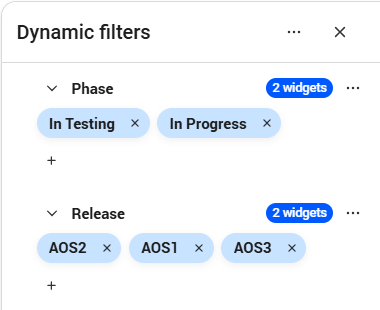
The heading of each filter displays the filter's name and a chip indicating the number of widgets linked to the filter. Click the chip to highlight the widgets linked to the filter.
-
To add values to a filter, under the filter heading, click the + button. The field's value list opens.
-
In the value list, select one or more field values.
Click OK. The selected values are added as chips to the filter.
By default, all the selected values are added to the filter as enabled. This means that all the field values are applied to the filters of the linked widgets.
-
To clear a value, click the value's chip. The value is removed from the filters of the linked widgets.
Click the value chip again to enable it in the filters.
You can select or deselect all a filter's values in one go:
-
Click the More… button next to a filter, and select Select all or Deselect all.
-
-
To permanently remove a value from the filter, click the x button in the chip.
Dynamic filters summary
You can display a summary row of which dynamic filters are applied to which widgets.
To display the filters summary:
-
In the Dynamic filters pane header, click the More … button.
-
Select Show summary row.
The summary row is added above the dashboard.
The summary is divided into two sections: Globally applied dynamic filters and Partially applied dynamic filters.
Hover over the information icon next to partially applied dynamic filters to see which widgets they are applied to.
-
To hide specific dynamic filters from the summary, click the More … button next to a filter, and select Hide from summary row.
Rename or delete filters
You can delete unused dynamic filters. You can also delete dynamic filters that are in use. In such a case, the filter is automatically removed from the widgets linked to the filter.
To rename or delete a dynamic filter:
-
In the dynamic filters pane, click the More… button next to a filter.
-
To rename the filter, select Rename filter.
-
To delete the filter, select Delete filter.
If the filter is in use, a warning displays. Confirm that you want to continue.