Share this page


Best practices of installing PPM on AWS
You can install PPM 9.43 and later versions on the AWS cloud. This section provides the best practices of installing PPM on the AWS cloud.
Recommended architecture
The diagram below shows the recommended architecture on AWS.
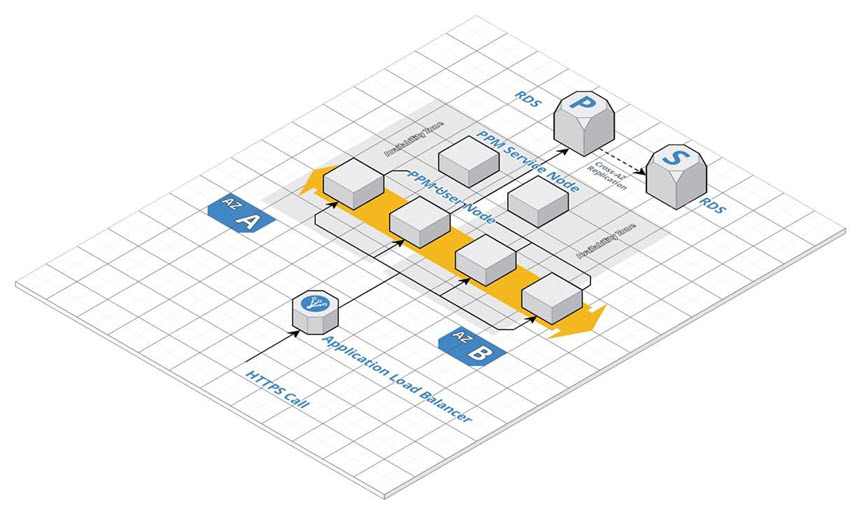
- Note:
- For PPM 9.43 - 9.53, a patch is required if you use RDS.
- You can also install Oracle in the EC2 instances by yourself instead of using RDS.
Install PPM on AWS
This section provides details on how to install PPM on AWS.
To install PPM on AWS:
-
Make sure you have a VPC and created EC2 servers in the private subnet. If you do not have them ready, create a VPC and set up Amazon EC2 by following the AWS documentation.
-
Install PPM on an EC2 server. See Install PPM with Oracle for details.
Install one node per server. You can install PPM on the first EC2 server, and create an AMI from this server. Then you can launch new instances of this AMI to create the rest nodes in the cluster.
For more information on PPM server clustering, see Configure a server cluster.
-
Create a shared folder for the
server.conffile for all the nodes in the cluster. You can use the AWS EFS filesystem or NFS to create the shared folder.For details, see Create a shared folder for the server.conf file.
-
In the
server.conffile, for each node, set values for the parameters listed in Server parameters required for server clustering. Follow the guidelines below:-
Make sure you set the following parameters as below:
Parameter name Value EXTERNAL_WEB_PROTOCOL httpBASE_URL The load balancer address - The values must be same for all the nodes in the cluster.
-
-
From
<PPM_Home>/bin, runkUpdateHtml.shto apply the changes to theserver.conffile. -
Create an application load balancer as described in the AWS documentation. Follow these guidelines:
-
Enable sticky sessions.
-
In the Configure a target group section, configure the target group as follows:
Parameter Value target group port com.kintana.core.server.EXTERNAL_WEB_PORTin theserver.conffiletarget group protocol http
-