Share this page


Best practices of installing PPM on Azure
You can install PPM 9.43 and later versions on the Microsoft Azure cloud. This section provides the best practices of installing PPM on the Azure cloud.
Recommended architecture
The diagram below shows the recommended architecture on Azure.
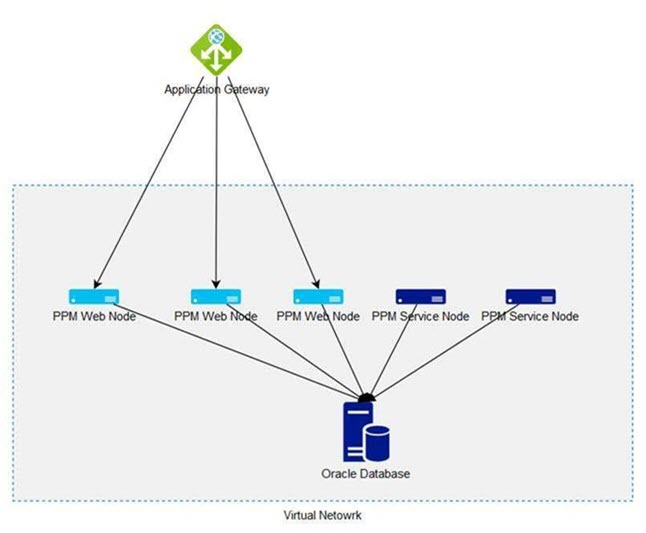
Note: You can create additional virtual network for Oracle Database.
Install PPM on Azure
This section provides details on how to install PPM on Azure.
To install PPM on Azure:
-
Follow the Microsoft documentation to configure an application gateway and create virtual machines as backend servers. Follow these guidelines:
-
Configure the HTTP setting of the application gateway as follows:
Parameter Value Backend protocol httpBackend port com.kintana.core.server.EXTERNAL_WEB_PORTin theserver.conffileCookie-based affinity Enable -
After you create virtual machines as backend servers, install PPM instead of IIS. Install one node per machine. See Installation and upgrade for details.
-
Add the PPM user nodes to the backend pool.
-
-
Create a shared folder for the
server.conffile for all the nodes in the cluster. You can use Azure file share, Azure NetApp, or NFS to create the shared folder.For details, see Create a shared folder for the server.conf file.
-
In the
server.conffile, for each node, set values for the parameters listed in Server parameters required for server clustering. Follow these guidelines:-
Make sure you set the following parameters as below:
Parameter name Value EXTERNAL_WEB_PROTOCOL httpBASE_URL The load balancer address - The values must be same for all the nodes in the cluster.
-
-
From
<PPM_Home>/bin, runkUpdateHtml.shto apply the changes to theserver.conffile.