Share this page


Portfolio timeline
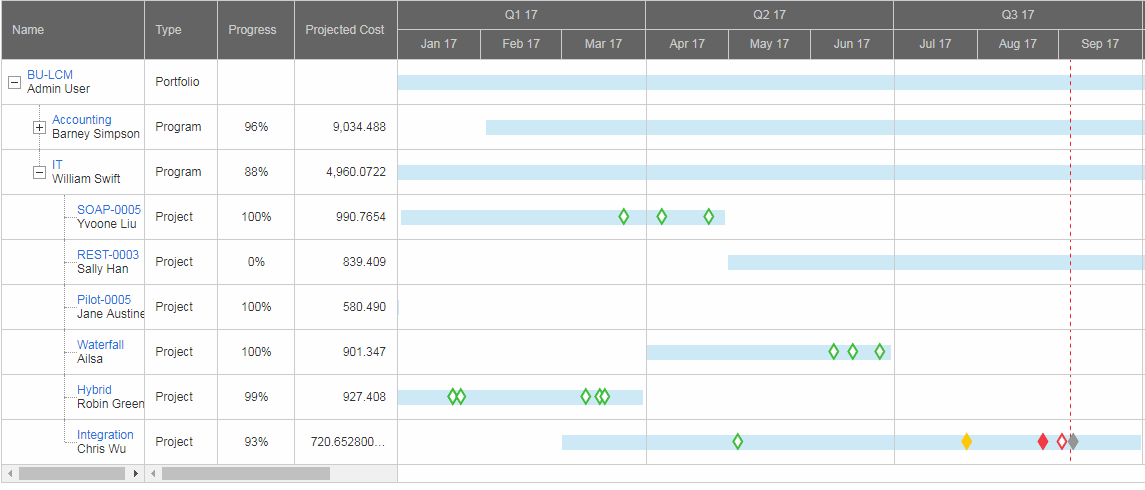
You can track portfolio contents progress and timeline from the portfolio Timeline tab. The portfolio Timeline tab displays portfolio contents in the hierarchical view.
Note: The Timeline tab is available only when it is enabled. For details, see Set up portfolio tabs.
By default, only timelines of active contents are shown. If you want to see timelines of closed contents, check the Include Closed checkbox.
Add portfolio milestones
- Click Add Milestone.
-
Fill the following fields in the Add Milestone window.
Field (*Required) Description *Name Name of the milestone *Type Type of the milestone *Planned finish date Planned finish date of the milestone Actual finish date Actual finish date of the milestone *Status Status of the milestone Owners Owners of the milestone
A milestone can have up to 20 owners.
-
Click Add. The portfolio milestone is added.
If you want to add more than one milestone, click Add more to continue adding.
Manage portfolio milestones
Available from version 26.3: The Manage Milestones option is available in the portfolio Timeline tab.
- Open the portfolio Timeline tab and click Manage Milestones.
- To edit a milestone, double-click the row and update the milestone fields.
- You can edit multiple milestone rows and then click Save once to save all changes.
- To delete milestones in bulk, click Bulk Delete, select milestones, and then confirm the deletion.
View the duration and milestones of the portfolio and its contents
- Duration of a project = Planned end period - Planned start period
- Duration of a proposal = Expected finish period - Expected Start Period
- Duration of a program = Latest planned finish date of the program contents - Earliest planned start date of the program contents
- Put the mouse over a milestone, you will see the name, planned finish date, actual finish date, and owners of the milestone.
-
Click < to move the timeline backward and > to move the timeline forward. Click TODAY to go to the current date.
View the health status, progress, and projected cost of the portfolio contents
To view these data, your administrator should configure to display the Health, Progress, and Projected Cost columns.
For details, see
By default, only the Name and Type columns are displayed.