Share this page


Relevant for: GUI tests and components
This section is designed to help you find solutions to errors you may encounter while creating or running tests or components. Each problem describes a variety of possible solutions and additional related information.
Cannot identify object
This error indicates that there is no object in the current application view that matches the description saved in the object repository for the object.
This error occurs in one of the following situations:
- The object is not (or not yet) displayed in the application at the time of the error.
- The object is present, but the description in your application has changed so that it no longer matches the test object description that OpenText Functional Testing is using to identify the object.
What you can do next:
| Condition | Next step |
|---|---|
| The problematic object currently displayed in your application | Check the object description your test is using. For details, see Solve object description problems. |
| The problematic object is not displayed in the application | Check the reason the object is missing. For details, see Solve missing object problems. |
The object is not unique
More than one object within the specified parent object has the same property values as those specified in the test object description for this object.
Determine whether the problem is with an individual object in your application, or whether the same problems apply to all or many of the objects in your application with the same object class.
| Condition | Next step |
|---|---|
| The problem applies to all or many objects of the same object class | Configure a unique test object description for this class. |
| The problem applies to a specific object | Create a unique test object description for this object. |
For details, see Create unique test object descriptions.
Parent not found
Each object in your test or component is identified relative to its parent objects.
If you received a Parent not found message, try one of the following solutions:
- Fix the object description of the problematic parent object using the suggestions for Resolve the identified problems.
-
Find all instances of the old hierarchy in the Editor and replace it with the correct object hierarchy as described Re-record an object to identify parent object description problems.
For details on managing objects in the object repository, see Test objects in object repositories.
Invalid arguments
Relevant for GUI actions and scripted GUI components
One or more of the method arguments you entered is invalid.
Either the argument type is invalid or you provided an invalid number of arguments.
Use one of the following suggestions to find the proper method syntax:
-
In the Keyword View, if the method contains arguments, the method arguments are displayed as tooltips in the Value column.
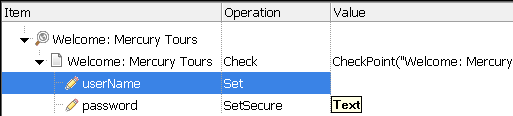
-
In the Editor, if the method contains arguments, the method argument syntax is displayed in a tooltip when you place the cursor after a method and then press Shift+Ctrl+Space or select Edit > Format > Argument Info.
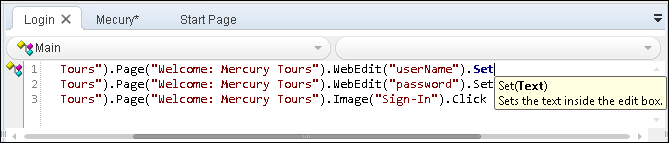
-
For more detailed syntax information and examples, see the specific object methods and properties in the Object Model Reference.
Tip: Place the cursor in the method that caused the error and press F1 to display the Object Model Reference help topic for the selected method.
- You can also use the Step Generator for step-by-step assistance in entering a statement in your test.
-
Cannot identify item
OpenText Functional Testing cannot identify a list or tree item specified in a method argument.
Confirm that the specified item exists in the object.
- If the object does not exist, delete the step or modify the item on which you want to perform the step.
- If the item exists, its name may have changed. Modify the name as necessary or specify the item using the item's index (for example, "#4"). Note that different test objects and methods may use a different syntax for specifying an item's index.
The object's item is not unique
More than one item in a list or tree item has the name specified in the method argument.
Specify the item using the item's index (for example, "#4"). Note that different test objects and methods may use a different syntax for specifying an item's index.
Run session failed
The run session cannot continue due to an unknown error. Check the step where the failure occurred.
- If a checkpoint or output value step failed, see Checkpoints in GUI Testing or Output values in GUI testing.
- If the step that failed referred to an external file, such as an associated function library, or, for tests and scripted components, the data table, a database, or an environment variable file, check that the files are accessible from your computer and that the files are saved in the appropriate format.
- If the step that failed called a test object method or property, see the specific object method or property in the Object Model Reference for details on appropriate usage of the method or property.
- If the step that failed performed a standard programming language statement in an action or a user-defined function, see the relevant language reference documentation.