Share this page


This topic is relevant for OpenText Functional Testing and OpenText Functional Testing for Developers.
When using AI to inspect your application for objects, you can provide feedback about the object identification. Send generic feedback OpenText to help improve the identification in the future, or provide specific details when requiring assistance.
Overview
Using the feedback tool, you can comment on how well AI Object Inspection identified the objects in your application.
You can specify various types of feedback:
-
General comments
-
Comment on the classes chosen for identified objects
-
Mark objects that were not identified at all
Save your feedback locally, and attach it to a support ticket.
Your comments can be used to assist you with object identification in your application. In addition, the comments can be considered when the AI object identification capabilities are upgraded, and help build a better engine over time.
Note: Depending on the product version you are using, the feedback user interface may differ slightly.

Open the AI Object Identification Feedback window
When inspecting the objects in your application using AI, after the object identification is completed, click Send Feedback.
The AI Object Identification Feedback window opens, displaying your application and highlighting the objects detected by AI.
Register and log in to the feedback server
Note: Sending feedback directly is no longer supported. Skip the Register and Login steps, and send your feedback by first downloading it locally. For details, see Save and send a feedback file.
Enter your feedback
You can provide various types of feedback:
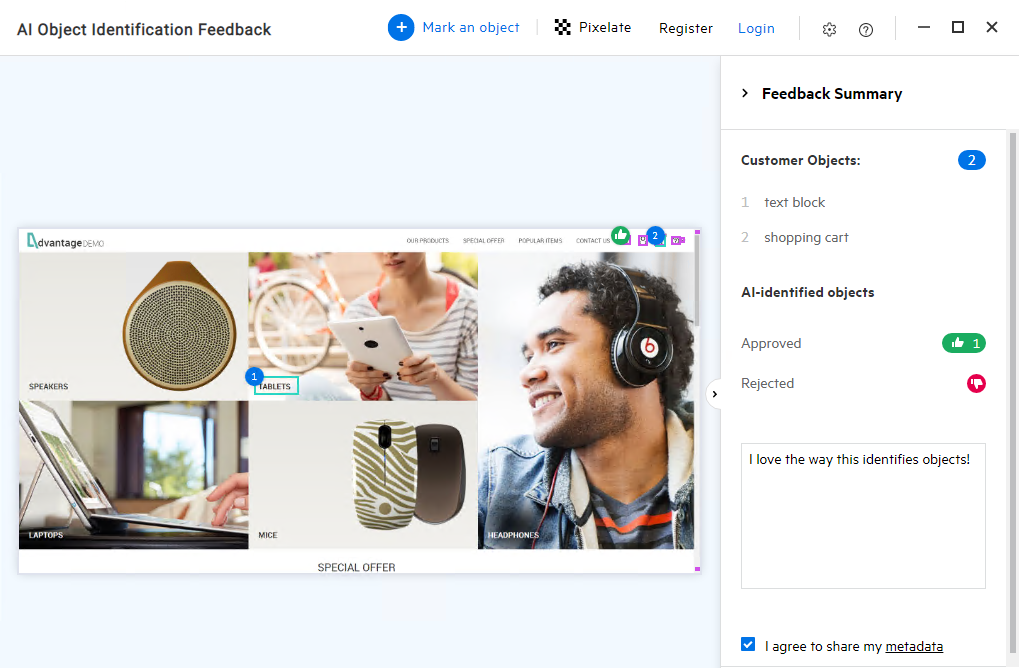
| Feedback Type | Enter your feedback |
|---|---|
| General comment |
Click |
| Approve or reject the identification of a specific object's type |
Hover over an identified object. You can see the object class and associated text. Give a thumbs up |
| Comment on the identification of a specific object | When you give a thumbs down  , enter a comment in the box that opens. , enter a comment in the box that opens. |
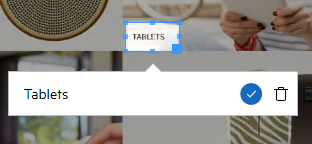
| Mark additional objects that were not identified |
To remove an object from the list of objects you marked, click the object in the application and then click the delete |
|
Blur sensitive data |
If your application displays sensitive data that you do not want to include in the feedback that you send, you can blur the sensitive data:
|
 to expand the right-hand pane and enter your comments in the input box.
 or thumbs down
  .
. 
 icon.
icon. button.
 .
.Save and send a feedback file
Save your feedback locally and send it to OpenText by opening a support ticket.
Note: Saving your feedback does not require you to register or login.
To save your feedback:
-
Enter at least one element of feedback.
- Select whether to include metadata in your feedback (application and device details).
-
Click Next and Download to save your feedback as a zip file on your computer.
-
Click Open file location to locate the file.
-
Use the support link to open a ticket for support and attach your feedback file to the ticket.
After saving your feedback, you can click the exit button to close the feedback windows.
Send your feedback directly
Note: Sending feedback directly using the Send button is no longer supported. Send your feedback by first downloading it locally. For details, see Save and send a feedback file.
Details on metadata collected with your feedback
When you agree to include metadata in your feedback, the following information is sent to OpenText:
| Details | Description |
|---|---|
| OpenText software information |
|
| Application information |
|
 See also: