Share this page


Relevant for: GUI tests and components and API testing
An asset is a testing document (such as a test, component, or application area) or any resource file that is used by a testing document (such as a function library, a shared object repository, a data table, a recovery scenario, or an environment variable XML file). The Asset Viewer and Asset Comparison Tool enable you to view and compare versions of a particular asset.
The Asset Viewer window provides a functional overview of an asset, enabling you to view its configurations and settings in a viewer format. The tree view enables you to drill down to view or verify a particular setting without needing to open different dialog boxes or even OpenText Functional Testing.
View any version of an asset using the Asset Viewer
After you select a specific version in the Version History dialog box, you can see specific details about that version of the asset, even if it is different from the working copy of the asset. Using this feature enables you to see where specific settings and details of the asset have been changed.
- Note:
-
To open the Asset Viewer in OpenText Functional Testing or OpenText Application Quality Management, the asset must be stored in an ALM project that has version control enabled.
-
The Asset Viewer does not enable you to drill down to view assets that are associated using a relative path.

Open the Asset Viewer in OpenText Functional Testing
You can open the Asset Viewer from any of the following:
| Option | Description |
|---|---|
| The main OpenText Functional Testingwindow |
|
| The Object Repository Manager (GUI Testing only) |
|
| The Recovery Scenario Manager (GUI Testing only) |
|
| The Command Line Interpreter (cmd.exe) (tests only) |
|
Open the Asset Viewer from OpenText Application Quality Management
Connect to the project containing the asset you want to view, and do one of the following:
| Option | Description |
|---|---|
| View the current version of an asset |
In the Test Resources module, select the resource and click the Resource Viewer tab. |
| View the current or earlier version of an asset |
|
Drill down to view or compare versions
Drill down to view or compare integral elements included in the test or component, or external assets associated with the test or component. For details, see Compare Assets and Versions.
View a screen capture depicting the UI location of an element (GUI testing only)
The screen capture displays an example of the relevant dialog box. The option (or area) for the node you right-clicked is highlighted in the screen capture.
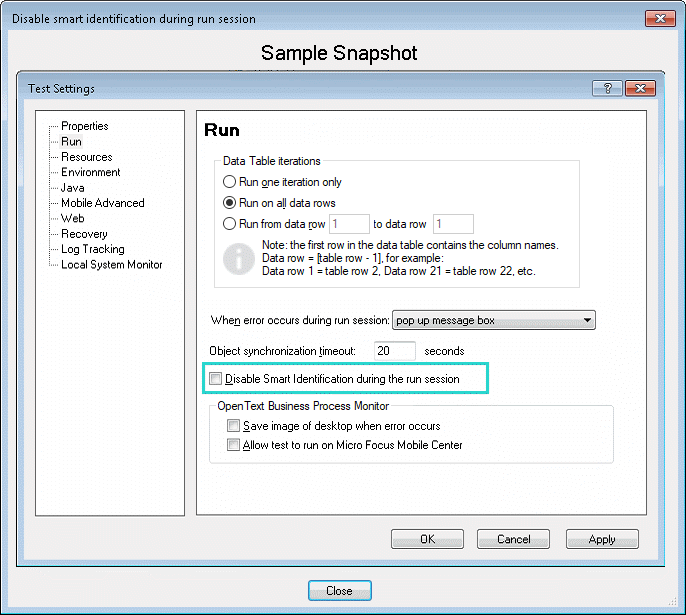
Example: Suppose you are viewing a comparison of a test and you notice that the Disable Smart Identification during the run session node is highlighted, indicating that it was modified.
If you are not sure where this option is located in OpenText Functional Testing, you can right-click the node in the comparison tree and select View Sample Snapshot.
A dialog box opens, showing you that this area is located in the Run pane of the Test Settings dialog box. The title bar of the dialog box lists the selected element, and a highlighted rectangle outlines the option.
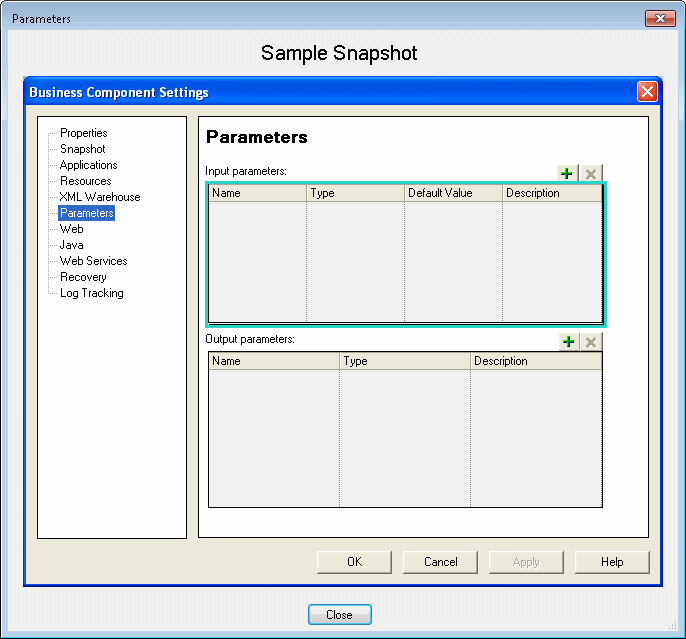
For components: Suppose you are viewing a comparison of a component and you notice that the Input parameters node is highlighted, indicating that it was modified.
If you are not sure of where this option is located in OpenText Functional Testing, you can right-click the node in the comparison tree and select View Sample Snapshot.
A dialog box opens, showing you that this area is located in the Parameters pane of the Business Component Settings dialog box. The title bar of the dialog box lists the selected element, and a highlighted rectangle outlines the option.
For details, see Compare Assets and Versions.
 See also: