Share this page


This topic contains tips for coding in JavaScript in your TruClient 2.0 - Web scripts.
JavaScript support in TruClient 2.0 - Web
JavaScript is supported in three areas. The JavaScript expressions are evaluated during script replay:
-
Arguments. The values in the Arguments section of each step can be JavaScript-based, and accept JavaScript expressions.
-
Descriptors ID method. The Value and Object ordinal fields for the descriptors accept JavaScript expressions.
-
JavaScript ID method. Accepts JavaScript expressions.
JavaScript execution context
There are two JavaScript execution contexts in TruClient for the application under test (AUT):
-
Default context. The default JavaScript context is outside of the AUT browser. The JavaScript code for the step arguments, and for the descriptors ID method, runs in this sandbox context.
-
AUT context. This JavaScript context is inside the AUT browser. It is used to access JavaScript objects and functions in the AUT, such as the window object or document object, as well as the whole DOM tree. The JavaScript code for the JavaScript ID method runs in this context.
AUT context is exposed as the AUT variable, which uses the evaluate() method to evaluate the JavaScript code.
Note: Predefined JavaScript API variables are not available in the AUT Context.
Example:
In the following example, the overall JavaScript code runs in the default context, while the function argument of AUT.evaluate() method runs in the AUT context.
The variable id is passed from the default context to the AUT context, while the tagName of the element is returned from the AUT context to the default context.
(async () => {
        const id = ‘#myid’;
        const tag = await AUT.evaluate((id) => {
            const element = document.querySelector(id);
            if (element) {
                return element.tagName;
            }
        }, id);
})()
JavaScript variables
Predefined JavaScript variables are provided for the default and AUT contexts. You can also define new variables. The accessibility of variables is determined by their scope.
Default context variables
The following table describes variables in the default context:
| Variables | Usage | Scope |
|---|---|---|
| Global (predefined) |
Add variables to the predefined Global variable, using this format: |
The defined variables have global scope, meaning they exist during the entire script replay. They can be accessed by any step, in any iteration. For details, see Global variables and functions. |
| Iteration (predefined) |
Add variables to the predefined Iteration variable, using this format:
|
The defined variables have iteration scope, meaning they can be accessed by steps in the current iteration only. The value of the variables is cleared when a new iteration starts. |
| JavaScript API (predefined) |
Add predefined TruClient JavaScript API variables containing predefined functions. These include:
|
N/A |
| <User defined> |
Add new local-scope JavaScript variables, using the let keyword:
Note: Do not use the var keyword. |
The defined variables are within the local/step scope, meaning they can be accessed in the current code block only. Use local scope whenever possible, to avoid polluting iteration or global scope. |
AUT context variable
The AUT context has one predefined variable: Object, in the Evaluate JavaScript on object step.
The object variable represents the step’s test object in the AUT.
Example:
This code triggers a click action on a clickable DOM element, such as a button.
AUT.evaluate(()=>{
    object.click();
});
Global variables and functions
The predefined Global variable represents the global scope in the default context. To define global variables and functions, you add them to the Global variable.
You can define global variables and functions in an Evaluate JavaScript step in the Init action.
Note: You can also define global variables and functions in the JS-functions.js file in the script folder, but this should be avoided. Libraries are now used for custom code, although the JS-functions.js file is still supported for backward compatibility.
Global variable format:
Global.myVariable = ‘myVariableValue’;Global synchronous function format:
Global.mySyncFunc = (a, b) => {
    return a + b;
}
Global asynchronous function format:
Global.myAsyncFunc = async (name) => {
    return await TC.getParam(name);
}
Access global variables and functions
Global variables and functions are accessible in default context across iterations.
For example:
(async ()=>{
    await TC.setParam('paramName', 'paramValue');
    await TC.log(Global.myVariable);
    await TC.log(Global.mySyncFunc(1,3));
    await TC.log(await Global.myAsyncFunc('param'));
})();
Work with asynchronous JavaScript code
APIs provided by modern browsers are asynchronous. To align with this, TruClient provides asynchronous JavaScript APIs, exposed by the TC, Utils, and IO variables.
As asynchronous functions, the JavaScript APIs return a promise. The recommended way to work with a promise is using async/await keywords. The await keyword cannot be used for top level code, so it must be wrapped inside an async function.
For example:
(async () => {
    return await TC.getParam(‘param’);
})();
Writing and running single-line asynchronous JavaScript code like this can be cumbersome. To simplify it, when the return value of a code block is a promise, TruClient waits for the promise to be resolved or rejected. The function uses the resolved value or rejected error as the result.
With this support, the above example code can be simplified to:
TC.getParam(‘param’);
For details on the available API functions, see TruClient 2.0 - Web functions in the VuGen Function Reference.
Custom code snippets
In addition to the built-in JavaScript code snippets, you can create your own custom code snippets for reusable blocks of code. When editing JavaScript code, for example, in an Evaluate JavaScript step, you can use the snippets to speed up the coding process.
To use snippets in the JavaScript code:
-
Open the General settings > Code snippets tab.
-
Click Add a new code snippet
 . A new code snippet template is opened, using a default label.
 -
Edit the snippet Label, and define Documentation to describe its purpose.
The label is used to access the snippet in the JavaScript editor.
-
Click Save in the General settings dialog box.
-
When creating or editing an argument for a step in the JavaScript editor, start typing the label for the snippet. Select the snippet from the auto-suggest list, to add the snippet content to the code.
Aviator AI actions in the JavaScript editor
The Evaluate JavaScript step supports AI actions that help with generating and editing code.
Note:
-
This functionality is supported from version 26.3.
-
To use AI actions in TruClient 2.0, VuGen must have a working connection to Aviator for Scripting. For details, see Set up Aviator.
-
From the Steps box, drag an Evaluate JavaScript step into your script.
-
In the Code argument box for the step, click the Edit in a dedicated editor button
 .
. -
Select the AI action you want from the Aviator actions dropdown menu:
-
Fix code. Aviator immediately starts to review the current code in the editor, and suggests a corrected version. The AI can find errors like logical errors and syntax errors.
-
Generate code. The Generate code dialog box is displayed, where you can prompt Aviator to generate actions for the current browser page. Fill in the relevant information. For details, see Generating code.
-
-
Review the suggested changes and accept or decline them.
Generating code
In the JavaScript editor, Aviator can create code from a natural-language instruction that describes the action you want to perform.
Aviator can do the following in the editor:
-
Click buttons, fill fields, scroll, navigate, or wait for elements.
-
Extract data from the page (text, attributes, titles).
-
Use TruClient built-in APIs, for example: Transactions, parameters, logging, file I/O, network filters.
-
Work with Web Components, including shadow DOM.
-
Extend or modify existing provided code.
Aviator cannot do the following:
-
Answer general questions or explain concepts.
-
Generate code in any language other than JavaScript.
-
Use
eval(), dynamic script injection, or any pattern that could introduce security vulnerabilities (XSS, code injection, prototype pollution, credential exfiltration).
To generate code:
-
Make sure that the relevant AUT page for the action is open in the browser pane.
-
Open the Generate code dialog box. For details, see To use AI actions:
-
Describe the action that you want to perform in the browser page.
-
If the JavaScript editor already contains actionable content, you can select the Include existing code in AI prompt option to add the editor content to the prompt. This provides context for the request, and helps Aviator generate code that aligns with the existing logic.
-
To submit the request, click Send.
Before the request reaches the AI, TruClient automatically captures all visible interactive elements directly from the live browser page, including those inside shadow DOM components. The element extraction runs at the moment you submit the request; if the page changes between requests, the snapshot will reflect the new state.
Example:
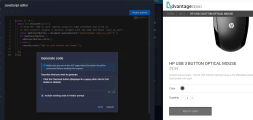
An Evaluate Javascript step was previously added to your script, containing code that defines the action to click the Add to cart button on the AUT page. Now you want to generate additional code that will define the action to click the Checkout button.
-
In the Code argument box for the step, click the Edit in a dedicated editor button.

-
In the opened JavaScript editor window, expand the Aviator actions menu and select Generate code.
-
In the displayed Generate code dialog box, you enter the required action and select the Include existing code in AI prompt checkbox.
-
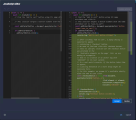
Click Send. Aviator processes the request, and then displays the suggested code to add.
-
Click Accept to approve the suggested code, then OK to close the editor.