Share this page


Integration with OpenText Performance Engineering Aviator
OpenText Performance Engineering Aviator is a generative Al feature. Aviator for Scripting is the implementation of Aviator in VuGen, and provides assistance with many aspects of the scripting process.
Introducing Aviator
Aviator for Scripting is an artificial Intelligence capability functioning as a conversational software application. It uses AI, machine learning, and LLMs to simulate and interact with users in a human-like manner.
Aviator can assist with tasks such as selecting the best protocol for an application scripting session, error analysis and remediation, function and coding assistance, script optimization, and script summarizing. When combined, these assisted actions can yield significant time savings, while also reducing required scripting skill sets.
When troubleshooting runtime errors, Aviator uses details from the error logs and error definitions. You can also use Aviator to learn more about your replay and test runs.
Aviator is delivered as a Software as a Service (SaaS) product. Once you are subscribed to the service, you can integrate your VuGen instance with the Performance Engineering Aviator tenant on SaaS.
Note: Aviator uses generative AI with LLMs. There is no guarantee about the accuracy or uniqueness of responses, nor about the rights to use AI-generated content. Apply your own judgement and review multiple sources before making decisions.

Aviator benefits
Aviator can provide the following benefits when using it with VuGen:
| Benefit | Description |
|---|---|
| Fast comprehension | Automatically breaks down a script by protocol, actions, calls, transactions, and core simulation points, enabling teams to quickly understand complex scripts. |
| Efficient knowledge sharing | Provides concise overviews of the script, helping with the onboarding of new team members, and facilitating cross-team collaboration. |
| Actionable enhancements | Recommends protocol-specific optimizations, such as removing redundant calls, parameterization, more efficient error handling, think time adjustments, and improved correlation. By applying these optimizations, you can make your scripts more efficient, scalable, and robust for large-scale performance testing. |
| Robust, scalable performance | Makes suggestions to make your script more efficient, scalable, and stable for large test runs. It can also help you detect bottlenecks at an early stage. |
| Root-cause guidance | Analyzes logs and offers structured debug steps for common issues, such as failed correlations, network errors, and server faults. |
| Quicker resolution | Helps engineers isolate problems faster, thus reducing downtime and avoiding manual trial-and-error. |
| Better test configuration | Ability to recommend the most suitable protocol, by analyzing app/client/server tech stacks. This prevents protocol mismatch and ensures more accurate simulations. |
| Holistic consulting | Offers guidance across the performance testing lifecycle, from architecture analysis, goal setting, test planning, scripting, execution, monitoring, to final optimization. |
| Knowledge amplification | Acts as an on-call performance engineering consultant within reach, facilitating learning and decision-making. |
Aviator functionality
Functionality provided by Aviator in VuGen includes the following:
| Functionality | Description |
|---|---|
| Summarize a script | Generates a summary of the script, including its type or protocol, the simulation it performs, the actions it contains, and the calls and transactions involved. It then provides an overall summary of the entire script. |
| Optimize a script | Suggests concrete script optimizations for specific script types or protocols. For example, common optimizations are removing redundant calls, suggestions for parameterization, error handling, managing think time, reviewing of correlations, avoiding unnecessary content checks, and connection management. |
| Troubleshoot replay errors | Helps you resolve replay errors in your script. The log is the most significant source of information for identifying the root cause of errors. While VuGen can suggest a general approach for debugging, replay errors often result from common causes, such as correlation problems, network or connectivity issues, or server-side errors. Aviator also outlines recommended debugging steps. |
| Suggest hosts to exclude | Identifies the host in the script that are not relevant for the AUT, and suggests methods to exclude them. This can help focus your performance analysis, and prevent external service response times from skewing the results. |
| Protocol advisor | Assists in identifying the appropriate protocol for your application. This requires input on the type of application, how the client communicates with the server, and the technologies used on both the client and server. Once these details are provided, Aviator can offer a more accurate recommendation for the most suitable protocol. |
| General queries | Assists with any general query related to performance engineering such as: Understanding the application and architecture, defining performance goals, test planning and scripting, test execution and monitoring, and optimization and recommendations. |
Set up Aviator
Aviator is delivered as a Software as a Service (SaaS) product. Once you are subscribed to the service, you can integrate your VuGen instance with the Performance Engineering Aviator tenant on SaaS. The integration requires an access key.
For details on subscribing to the service and creating access keys, see the Aviator documentation in the OpenText Core Performance Engineering Help Center.
To access Aviator in VuGen:
-
Click the Aviator button
 on the main toolbar.
 -
In the displayed Connect to Aviator window, provide the required information.
UI element Description Core Performance Engineering Platform URL URL for the Core Performance Engineering Aviator tenant you are using. For example, https://platform-ams.loadrunner.saas.microfocus.com/ Tenant ID The ID number for the tenant you are using. Client Key The Client ID that is generated when you create your access key. Client Secret The Secret Key that is generated when you create your access key. -
Click Sign in.
-
After successfully setting up the connection, you can access Aviator by again clicking the Aviator button on the toolbar. Aviator opens in a dedicated chat pane.
Query using Aviator
Aviator can provide information and help for the currently open script and protocol, or provide more general information on Performance Engineering scripts, products, and functionality.
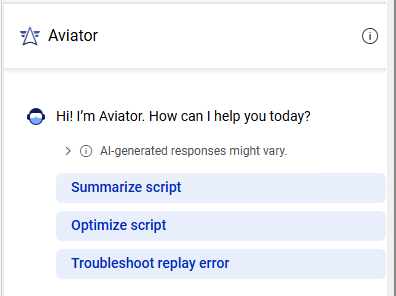
In the Aviator pane, you can select one of the predefined prompts (these vary, according to the context), or enter your own query into the text box. You then view the generated response, and continue the conversation by entering text in the text box. Aviator maintains the context while you continue to work in the script.
To get the best results, phrase your questions clearly and concisely, providing specific context and using precise language. If you have a multi-step request, break it down into smaller, sequential questions.
The following options are also available:
| UI element | Name | Description |
|---|---|---|

|
Edit | Use to rephrase your query and generate an updated response. |

|
Copy | Use to copy your query, the response, or provided examples. |

|
Good/bad response | Use to give feedback on the quality of the response. Your feedback can help OpenText to improve Aviator performance. |

|
New topic | Use to begin a new conversation. |
Usage examples:
Here are some ways you might use Aviator:
-
The Replay Summary for your script reports a detected error. In the Aviator pane, you select the Troubleshoot replay error prompt. Aviator’s response provides a suggestion on how to fix the error.
-
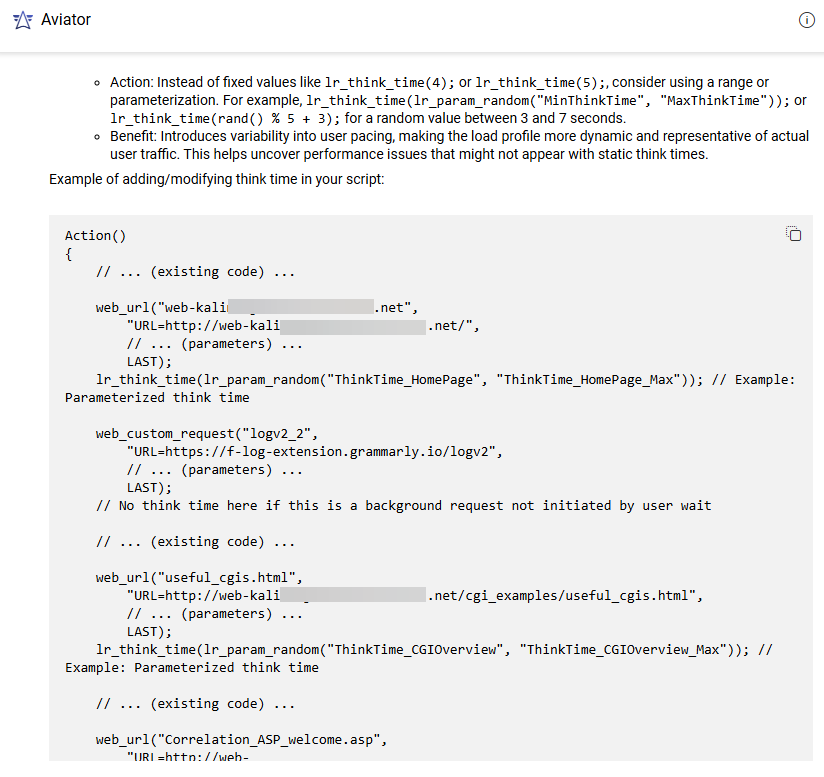
You type your question in the Aviator pane chat box, for example, "How can I add think time to my script". Aviator provides a response targeted to your specific request.
 See also: