
Share this page


This tab enables you to create and organize business components into business process tests and flows, and flows into business process tests. The Test Script tab has a grid view and a canvas view.
| Option | Description |
|---|---|
| To access |
In the Test Plan tree, select a business process test or flow and click the Test Script tab. |
| Important information |
Note:
Caution: If you are using dynamic data and are working with an external data table in Microsoft Excel to change parameter values and add iterations, the information listed in the Test Script Tab is not accurate. To know how your test will actually run, see the data defined in the Excel file. |
| Relevant tasks |
User interface elements are described below:
| UI Element | Description |
|---|---|

|
Select Components. Opens the Select Components and Flows Pane, enabling you to add content to your flow or business process test. For user interface details, see Select Components and Flows Pane. |

|
Record Steps. Enables you to record components automatically by navigating any application. For task details, see Record components into flows and business process tests. Available when:A flow or business process test is selected. You must have the correct permissions to record. |

|
Learn Flow. Enables you to learn a flow automatically by navigating your packaged app. For task details, see Learn business process tests and flows. Available for: BPT Packaged Apps Kit users with a flow selected.
|


|
Canvas/Grid View. Toggles between the grid view and the canvas view. For user interface details on the grid view, see Grid View. For user interface details on the canvas view, see Canvas View. |

|
Enables you to expand all nodes in the view. |

|
Enables you to collapse all nodes in the view. |

|
New Component Request. Enables you to request a new business component. For task details on generating a request for a new component, see the step Create business process tests and flows. |

|
Move up/down. Enables you to change the order of entities in the business process test by moving a selected component, group or flow up or down in the order. Tip: You can also change the testing order by dragging and dropping selected items. |

|
Delete from Test. Removes the selected business component, group, or flow from the business process test (or flow). Considerations
Not available when: Attempting to remove a business component from a flow whose business process test is selected in the test plan tree. First, select the flow in the test plan tree, and then delete the business component. |

|
Go To Component/Flow. Goes to, and opens, the selected business component in the Business Components module or the flow in the Test Plan module. |

|
Group. Creates a group that includes the selected business components and/or flows. The components and flows must be contiguous. A component or flow can belong to one group only. A group node is created above the grouped items and is identified by the group icon Tip:
|

|
Ungroup. Ungroups components and/or flows. To completely remove a group, including its members, select the group and click the Remove from Test To remove a business component or flow from a group, select the component or flow. Drag the item up or down out of the group, and drop it at the required location. |

|
Add New Branch. Adds a new branch to a test or a flow. For details, see Add branches. |

|
Add Branch Option. Defines options for a branch. For details, see Add branches. |

|
Show Test Parameters Promotion Status. Enables you to view a list of test and flow parameters that were promoted and where they were originally defined. For details, see Create parameters by promotion. |

|
Refresh. Updates the data, such as the component parameter data and snapshot, for each business component in the business process test. The test itself is not updated. |

|
Validate. Checks the business process test or flow and all the test instances within the test set for errors. For user interface details, see Test Validation Results Dialog Box. |

|
|
|
|
Add/Edit Run Condition. Enables you to add run conditions to your flow or test. For details, see Set run conditions for flows and business process tests. Available when: A business component or a flow is selected. |

|
Delete Run Condition. Enables you to remove an existing run condition from your flow or test. Available when: A flow or a business process test is selected. |

|
Run or Debug Test. Enables you to run or debug a business process test or flow. For details, see Debug automated tests and flows. |

|
Open BPT/Flow. Enables you to launch BPT tests and flows in UFT. Note: Requires UFT 14.02 or later. |

|
Stop Run. Enables you to stop the current run or debug session. Available when: Running or debugging a test from the Test Plan module. |
| Iterations option |
Opens the iterations dialog box for the selected entity. For user interface details, see Iteration Pages. Available from: <right-click menu> |
|
|
Hides or shows the tabs at the bottom of the Test Script tab. |
| Grouping option |
Opens a submenu with the Group and Ungroup options. Available from: <right-click menu>. If more than one component is selected, the Group option is available. If a group is selected, the Ungroup option is available. |
| Expand all below this node/Collapse option |
Expands/collapses the node for the selected entity. Available from: <right-click menu>, for flows and groups |
| Details option |
Opens the Details dialog box for the component, component request, or flow. Available from: <right-click menu> |
| Notes |
Displays the description and comments of the business component, flow, or group in read-only format. |
| Snapshot |
Enables you to add an image of your application to an OpenText Application Quality Management record. |
| Manual Steps tab |
Displays the manual steps defined for the component. |
| Parameters |
Lists the parameters defined for the component or flow. |
| Comments |
Displays additional comments for the component instance. |
 . The group is named, by default, Group followed by a unique number.
Grid View
The grid view enables you to modify your test scripts in a table-like format.
User interface elements are described below:
| UI Elements | Description |
|---|---|

|
Snapshot icon, indicating that the business component or flow has a snapshot. Click the icon to see the snapshot. |
| Name |
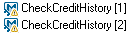
Displays the name of the business component or flow. Note: If an entity is selected for the current test or flow multiple times, an instance notation is automatically appended to the name in this column. Example
Syntax Exceptions:
|
| Status |
Displays the status of the business component or flow. |
| I/O Parameters |
Displays the number of input and output parameters defined for the business component or flow as a dynamic link, which opens the I/O Parameters dialog box. For details, see Link output and input parameters. |
| Iterations |
Displays the number of iterations defined for the business component, group, or flow, followed by the range of selected iterations. This information is displayed as a dynamic link, which opens the Iterations dialog box for the selected business component, flow, or group. For task details, see Define iterations for components, flows, and groups. |
| Run Conditions |
Displays a link to the run conditions defined for the business component or flow. Tip: If a run condition is not valid, the run condition link is displayed in red. This can happen, for example, if a reference parameter was deleted, a parameter value was encrypted, and so on. Delete the run condition and define a new one. |
| On Failure |
Enables you to define whether a run continues or ends if a specific business component or flow in the test fails.
To set the default On Failure value, see Set default On Failure behavior to. |
| Comments |
Displays the comments for the business component, group, or flow. |
Canvas View
The canvas view enables you to modify your test scripts using a graphical display.
| Tab Feature or Option | Description and Usage |
|---|---|
| Important information |
The canvas view includes all the functionality of the grid view. The canvas enables you to visualize the data flow in the test or flow, including parameters and links. The following describes how to work in the canvas view.
|
User interface elements are described below:
| UI Elements | Description |
|---|---|

|
Zoom Out. Decreases the zoom level of the canvas. Tip: You can press and hold this button for quicker zooming. |

|
Zoom Level. Increases/decreases the zoom level of the canvas using a slider. |

|
Zoom In. Increases the zoom level of the canvas. Tip: You can press and hold this button for quicker zooming. |

|
Reset Zoom. Resets the zoom level to the default zoom settings. |

|
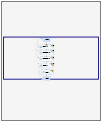
Show Minimap. Toggles the display of the overview in the canvas view. Located in the lower-left side of the canvas view, the overview is a reduced canvas of the currently-selected business process test or flow. The framed area of the overview is magnified in the canvas. Example:
Tip:
|
| Parameter Presentation |
Enables you to select the detail level for parameters and links in the canvas. The following levels are available:
User defined is displayed if you manually change the detail level, such as by expanding or collapsing the parameter details for a few nodes. |

|
Start node. Represents the start of the business process test or flow. For display purposes only. |
|
Component node. Represents a component entity. |

|
Component Request node. Represents a component request entity. |
|
Group node. Represents a group entity. Tip:
|
|
Flow node. Represents a flow entity. Tip: Click the expand and collapse buttons to show/hide components in the flow. |

|
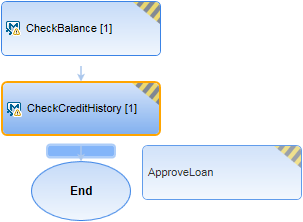
Drop indicator. When selecting an entity from the Select Components and Flows pane into the canvas, or moving an entity within the canvas, this indicator helps you position the entity. Example: The ApproveLoan component is being pasted after the CheckCreditHistory component.
|
  |
Status. Located at the upper right of an entity's node, indicates the status of the entity.
|

|
Collapse. Hides nodes for the selected entity. |

|
Expand. Shows nodes for the selected entity. |

|
Entity Order. Indicates the order of the entities in the business process test or flow. |

|
Input parameters. Indicates the number of input parameters for the entity. Tip: Click to display a scrollable list of the entity's input parameters. |

|
Output parameters. Indicates the number of output parameters for the entity. Tip: Click to display a scrollable list of the entity's output parameters. |

|
Promotion/Linkage Arrow. Indicates from where parameters were promoted or to where parameters are linked. Note: When many links exist between parameters, click the triangle next to a parameter name to display that parameter's link in yellow. Tip: Hover over the arrow to see the name of the target node of the link. |
| [ <instance> ] |
Instance. Indicates the instance of the entity in the test or flow, if the entity was selected multiple times. Example:
|

|
Iterations. Indicates the number of iterations selected for the entity in the test or flow. For example, if an entity has 5 iterations, but only iterations 3 and 4 are selected to run, this Iterations UI element will display 2. Click to open the Iterations dialog box for the entity. Hover over to see a tooltip that displays which iterations are selected. Tip: If the number of iterations is greater than 999, a K notation is used (for example, 3K is displayed if there are 3145 iterations. If the number of iterations is greater than 999,999, an M notation is used (for example, 1M is displayed if there are 1,334,452 iterations). For user interface details, see Iteration Pages. |

|
Exit. Indicates the component has an On Failure condition that is set to exit. |

|
Run condition. Indicates the component or flow has a run condition. Click to open the Run Condition dialog box. Hover over to see a tooltip that displays the run condition. For details, see Set run conditions for flows and business process tests. |

|
Notification. Click to see the notification, such as (iterations mismatch). |

|
End node. Node representing the end of the business process test or flow. For display purposes only. |


Select Components and Flows Pane
This pane enables you to select business components and flows for inclusion in a business process test (or flow). OpenText Application Quality Management adds instances of the selected components or flows to the test (or flow).
User interface elements are described below:
| UI Element | Description |
|---|---|
| Components |
Displays the component tree, from which components can be added to flows and tests in the Test Script tab. |
| Flows |
Displays the flows tree, from which flows can be added to tests in the Test Script tab. |
|
|
Quick Add. Adds the selected business component or flow after the component, group or flow selected in the Test Script tab (or at the end of the test if no component or flow is selected). As the component or flow is added, parameters, if any exist, are promoted according to the last promotion method used.
For task details on promoting parameters, see Promote parameters. |

|
Show Entity Details. Opens the Details dialog box for the selected entity in read-only mode. |

|
Go to Entity in Module Tree. Navigates to the selected entity's location in that entity's module, and highlights the entity. |
|
|
Refresh. Refreshes the tree. |
|
|
Find. Searches for a specific test in the tree. Type the name (or part of the name) of the test in the Find box and click Find. If the search is successful, the test is highlighted in the tree. For details, see Search, replace, and update data. |
|
|
Filter/Sort. Filters and sorts the test in the tree. For details, see Filter dialog box. |
|
|
Go to Component/Test by ID. Opens the Go To Component/Test dialog box, enabling you to find a specific component by component ID of a flow by test ID. Note: You can only go to components or flows that are in the current filter. |
|
|
Close. Hides the Select Components and Flows pane. |





