Share this page


Type mapping
This topic describes type mapping and how to define mappings between a connection's data sources.
About types
A type is a system asset such as an epic, issue, requirement, task, or user story. When creating a connection, you must add at least one type to synchronize between your master and target data sources. For example, you may want to map a Broadcom Rally Central hierarchical requirement to a story.
The types that are available to add to a connection are limited to the types that you added to your data source. If the type that you want is not listed, return to the Data Sources tab and add the type to the data source. For details, see Create a data source.
Several types of mappings between masters and targets are available: one-to-one, many-to-one, and one-to-many.
In addition to mapping attribute fields between types, you can also map relationship fields. For details, see has moved to Overview.
If you mapped two select-list fields, you need to make sure that the fields' values are also mapped. For details, see Value maps.
Note: If you save the connection before adding any types, you can edit it later and specify the types. If you do not save the connection before pressing Next (to go to the Types and Fields page), a preselected list of types and fields is mapped automatically.
Synchronization direction
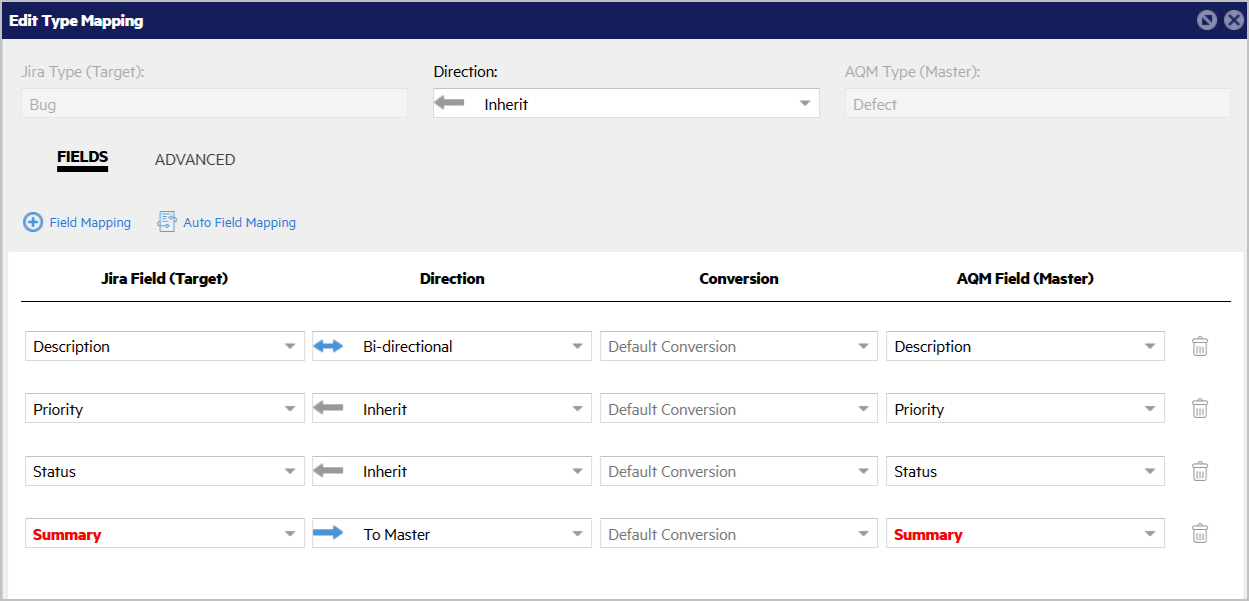
When setting up a connection, you specify a default direction for synchronization. This setting is inherited by all child levels (type, field) unless explicitly overridden. When a child level inherits this setting from its parent, the Direction shown is Inherit with gray text or a gray arrow.
The direction specified at the type-mapping level is used when creating a new field mapping. The direction specified for field mappings is used when you update a mapping.
The following example demonstrates a combination of direction settings, both inherited and explicit:
Type and user maps
Before you run a synchronization, you must map fields between the data sources. Mappings in a connection are per project.
Type maps are the most convenient, and usually the most logical way to indicate corresponding fields between a master and target. The type in one data source synchronizes to an equivalent type in the other. For example, OpenText Software Delivery Management defects synchronize with Azure DevOps bugs. For complex use cases, you can choose to map completely different types across products, as long as the resulting data satisfies the product's workflow and integrity. The master and target type mapping can be uni-directional or bi-directional.
User maps are user representations that map user properties across endpoints. You can manually construct maps with the user interface. User maps are ideal if you have different representations across endpoints. For example, when mapping between OpenText Software Delivery Management and Jira, the Jira assignee field needs to be mapped to the OpenText Software Delivery Management owner field. For details, see User maps.
The following are some common user representations for the user Joe DiMaggio:
- Jira DisplayName: Joe DiMaggio
- OpenText Software Delivery Management email, full_name, or name: JDiMaggio@opentext.com
- OpenText Application Quality Management loginname: joedimaggio
- Azure DevOps DisplayName: Joe DiMaggio
Use the DataSourceUsers and UserMaps batch scripts to automate the process of storing mapped user representations from different systems into the database. For details, see DataSourceUsers and UserMaps scripts.
Define type mappings
You define type mapping in the connection wizard, as a step in creating a connection, or later when editing a connection.
To define type mapping in a connection:
- In the connection wizard, click Next to go to the Types and Field tab.
-
In the Default Sync Direction list, select a direction for data synchronization. Synchronization between all types and fields will be performed in this direction. You can override this setting for specific types. Possible values for synchronization direction are:
Direction Description From Master Data is only synchronized from the master to the target. To Master Data is only synchronized to the master from the target.Bi-Directional Data is synchronized both to and from the master and target. (This is the default.) Note: When mapping to or from a read-only field, select the direction prior to selecting the non read-only field name on the other endpoint.
-
You can allow the wizard to automatically map the data sources' types and fields. Click Auto Type Mapping. The wizard attempts to auto-replace and map all types exposed by the selected data sources, and their fields. If you choose Type one, the types that you see in the mapping are reset to the types that are available in the auto-map.
Caution: If you use auto type mapping, then mappings that you manually defined earlier may be overwritten.
To set the type and field mapping manually, click + Type Mapping. The Add Type Mapping window opens. For more details, see Map types manually.
Map types manually
If the connection's types cannot be mapped automatically, you can map them manually.
To add a manual type mapping:
- In the Types and Fields tab of the connection wizard, click + Type Mapping. The Add Type Mapping dialog box opens.
- The Target Type and Master Type fields list all the types that you exposed in the target and master data sources. Select the types to map from the target and master data sources.
- In the Direction field, select a direction for data synchronization. Select the "Inherit" option to use the default direction that was set in the main Types and Fields tab. For details, see Define type mappings.
-
After selecting the types to map, you can now map the types' fields. Click Fields.
- To automatically map the types' fields, click Auto Type Mapping. The wizard attempts to map the fields between both types.
- To define a manual field mapping, click Add Field Mapping.
-
Select fields in the target and master data sources to map with each other.
For a list of the field types that can be mapped, see Define type mappings.
For details on mapping relationship fields, see Overview.
- Select the synchronization direction in the Direction list for each field. By default, the direction is inherited from the type mapping.
-
In the Conversion field, we recommend using Default Conversion.
Apply one of the following values only after careful consideration:
Option Description Default Conversion (Default) The field data is not altered when synchronizing.
Apply user map If neither side of the mapping is a user property, you can apply the user map by selecting this option. CSV conversion When converting from a multi-value field to a single value field, this conversion type packages all values into a string with values separated by commas.
When converting from a single value to a multi-value field, the conversion unpacks comma-separated value elements to a list of values.
For details, see Map multi-value to single-value fields.
Master is HTML If the master side of a field mapping contains HTML-formatted content and you want, or are allowed only, plain-text content in the target. This setting converts the HTML content in master to plain-text content in target. Target is HTML If the target side of a field mapping contains HTML-formatted content and you want, or are allowed only, plain-text content in the master. This setting converts the HTML content in target to plain-text content in master. - If the fields you are synchronizing use different values, create a value map. For more details, see Value maps.
- Click the OK button to save your mappings and close the Add Type Mapping dialog box.
Set calculated value for Run Manual type
For the OpenText Software Delivery Management Run Manual type, assign a calculated value for the Release
To set the calculated value:
In the Connection wizard's Projects and Rules page, click the Edit Rule button  to edit the connection type rule.
-
Click the Calculated Value (Target) tab.
-
Enter Release into the Set field box, and the release name in the To Value box.
Supported type mappings
When mapping Test entities between OpenText Application Quality Management and OpenText Software Delivery Management, uni-directional mapping is supported.
The following are the supported type mappings for Test entities, available in the Connection wizard's Types and Fields page:
| OpenText Application Quality Management type - Master | OpenText Software Delivery Management type - Target |
|---|---|
| Release | Release |
| Run | Run Manual |
| Test | Test Manual |
| Test Instance | Test Suite Link To Test |
| Test Set | Test Suite |
The following are the suggested minimum field type mappings for the above types:
| Types: | Fields: OpenText Application Quality Management - Master |
Fields: OpenText Software Delivery Management - Target |
|---|---|---|
| Release-Release |
End Date, Name, Start Date |
End date, Name, Start date |
| Run-Run Manual |
Attachment, Related Comments, Run Name, Run Steps, Status, Test Instance |
Attachments, Comments, Name, Run Steps, Native status, link.Test Suite Link To Test |
| Test-Test Manual | Attachment, Description, Design Steps, Status, Test Configuration, Test Name | Attachments, Description, Steps, Phase, Data Table, Name |
| Test Instance-Test Suite Link To Test | Test, Test Set | Test, Test Suite |
| Test Set-Test Suite | Description, Name | Description, Name |
Non-supported mappings
The following mappings are not supported:
-
Synchronization of detailed test data with third party products. This includes synchronization of any kind of step data, such as test steps, design steps, step results, and so forth.
-
Only two scenarios are explicitly supported for detailed manual test data for OpenText internal applications and for step data:
-
Synchronizing OpenText Application Quality Management from/to otherOpenText Application Quality Management.
-
Synchronizing from OpenText Application Quality Management to OpenText Software Delivery Management (Octane/CoreSDP).
-
All other endpoint variations are not explicitly supported.
Map multiple types to a single type
When mapping two or more types from one endpoint to a single type endpoint, the receiving endpoint must be able to distinguish between the types in the syncsets.
For example, consider a case where a Jira Story and a custom type called "Jira Support" are both mapped to an OpenText Software Delivery Management story type. The Jira Support type is mapped uni-directionally to the story, while the Jira Story is mapped bi-directionally to the story.
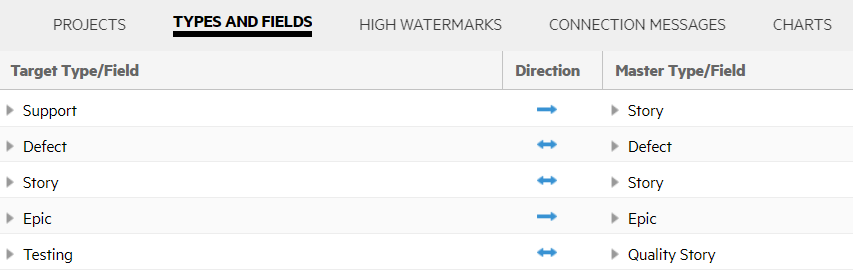
In this case, the receiving endpoint must be able to distinguish between stories syncing from the Jira Support type and stories syncing to/from the Jira Story type.
To enable the receiving endpoint to make this distinction:
- Add a custom field to the target endpoint type, the OpenText Software Delivery Management story. The field can be a Boolean type, for up to two cases, or a string/list for three or more type cases.
-
When mapping to the story, make sure that the Master Calculated Value is set to the correct value:
- False: for the Jira Support type
- True: for the Jira Story type
-
When reading the stories, set the Master Sync Criteria to accept only stories with the value set in the following way:
- False: for the Jira Support – Jira Story syncset
- True: for the Jira Story – Jira Story syncset
These steps ensure that only relevant OpenText Software Delivery Management stories are considered when processing each syncset, and the stories do not overlap across the two syncsets.
Example: Uni-directional mapping between Jira epic and story to OpenText Application Quality Management requirement type
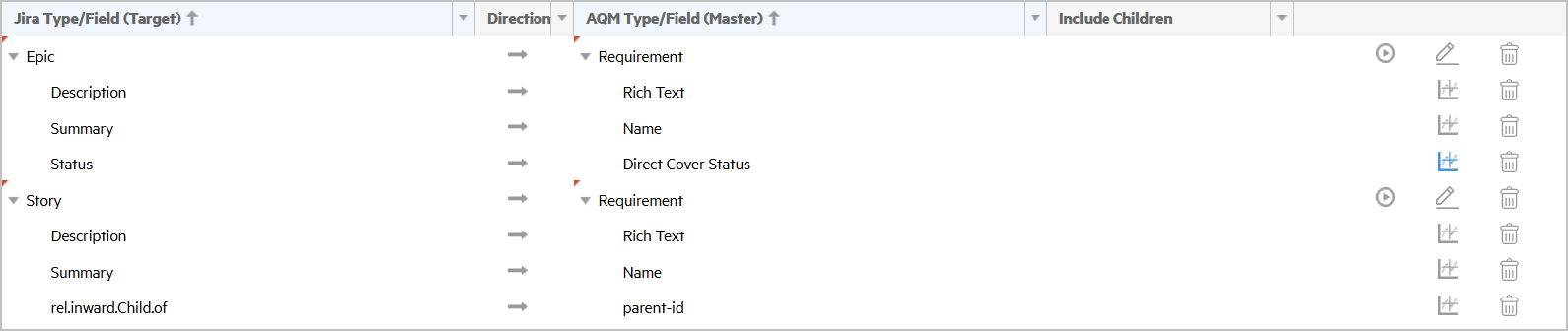
The following is a uni-directional mapping between Jira epic and story to requirement type in OpenText Application Quality Management. Jira epic is mapped as a requirement of type Folder, and Jira story is mapped as a requirement of type Business. The parent->parent-id mapping ensures the requirements are moved to the relevant folder. In order to successfully synchronize this multiple-types to single-type scenario, we need to ensure that each syncset only processes the relevant requirements.
-
Set the Master calculated values for requirement type in epic->requirement to Folder.
-
Set the Master calculated values for requirement type in story->requirement to Business.
-
Set the Master Sync Criteria on the epic->requirement to only sync requirement type Folder.

-
Similarly, set the Master Sync Criteria on the story->requirement to only sync requirement type Business.

The above steps ensure that only relevant requirements are considered when processing each syncset. The requirements do not overlap across the two syncsets, namely the epic->requirement syncset and the Jira story–>requirement syncset.
Map multi-value to single-value fields
This guidance has moved to Map multi-value to single-value fields.
Additional type mapping guidelines
This section lists several guidelines that apply when mapping types.
- You can maintain relationships between types. In a connection, relationships are treated like fields in the type mapping. First you choose the relationship field in one product, and then choose the relationship in the other product.
- The connection wizard does not reflect changes in types. Therefore it does not convert a story to a defect or vice versa. Most products do not support changes in types. The wizard creates a parallel item of the new type, provided that the new type is configured in the connection.
- You can map any type, such as a story or defect in one product, to any type in another product.
- For any given type mapped for a connection, the required fields for that type are displayed in red. An error message indicates that the synchronization may fail if an artifact is being created on the type without the required field. You can ignore this warning if the synchronization direction is uni-directional, with data flowing out from the type whose fields are displayed in red. In this case, none of the required fields of the type should appear in the mapping, and the warning message can safely be ignored.
-
When mapping workflow statuses from one endpoint system to another, ensure that each system is able to transition from one status to all others. This is required for all projects being synchronized, but only for the data source user account. The data source user account must be able to execute any state transition that satisfies the corresponding state transition on the other endpoint. All endpoint users will continue to see only the relevant workflow state transitions.
For example, consider a state transition of a defect in OpenText Software Delivery Management. The user moves the defect from New to Rejected, which is a permitted transition. However, when the connection tries to synchronize the modified Defect to a Jira Bug, it fails since the transition from New to Rejected is not permitted in Jira. The Jira server will throw an exception stating that the transition is not supported and as a result the synchronization will fail. Connect only serves as an intermediary service, taking state transition data from one endpoint and applying it to another.
Map custom type fields
You cannot map a custom reference field to a custom list field from one endpoint to another. If you try to do so, you may receive an error message indicting: Target field is of type item and cannot be mapped to Master field of type enumeration.
For example, if you defined a custom Release type reference and Detected in Release fields in Jira, and in OpenText Application Quality Management you also defined a Release type custom field, but Detected in Release as a list field, they will not be able to be mapped.
Although they are both Release type fields in their respective systems, the fields are both custom fields with different meta data types.
As a workaround, use a VB script to set the field in the other endpoint.
To implement a sample custom field type mapping:
-
Map the Jira Detected in Release to a custom string field in OpenText Application Quality Management. The custom string field should have the name of the Release.
-
Write a custom VB Script plugin that is triggered when the custom field is assigned a value.
-
Use the custom field's value to set or choose the corresponding entry in the custom list.
For assistance with creating VB Script plugins for OpenText Application Quality Management, contact Support.
Master sync criteria
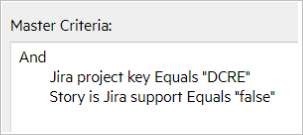
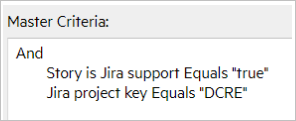
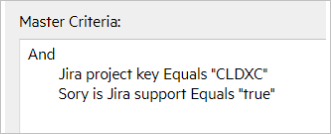
When syncing two or more projects (/workspaces) on one side to/from a single project on the other, or when syncing two or more types on one side to/from a single type on the other, use synchronization criteria with a custom field value to ensure that only relevant artifacts are loaded into each syncset.
The following table shows the master synchronization criteria for several syncsets:
| Syncset | Master Criteria |
|---|---|
| Story, DCRE |
|
| Support, DCRE |
|
| Support, CLDXC |
|
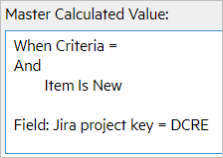
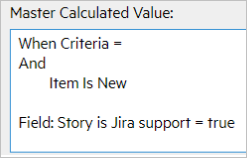
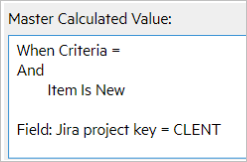
Master calculated values
The following table shows the master calculated values for the syncsets:
| Syncset | Master Calculated Value |
|---|---|
| Story, DCRE |
|
| Support, CLENT |
|