Share this page


Field and value mapping
This topic describes field type compatibility, value maps, and conversions. To create or edit field mappings, see Map types manually.
Value maps
A value map defines how a field value in Product A maps to a field value in Product B. When mapping two select-list fields, make sure that the fields' values are also mapped.
When mapping lists of values, the following guidelines apply:
- You can map the OpenText Software Delivery Management Phase to the OpenText Application Quality Management Direct Cover Status.
- Each target entry must be mapped to an entry on the master.
- Unmapped entries trigger a synchronization failure on the artifact. For details, see FAQs.
-
For strings containing a datetime value, use the following syntax to convert it to an ISO date/time format:
"yyyy-MM-dd" + optional("'T'HH:mm:ss" + optional(".nnnnnnnnn")) + optional("+2:00" + optional('[Region/Zone]'))
To define value maps:
- In the connection wizard's Types and Fields tab, expand a type mapping. The types' fields are listed.
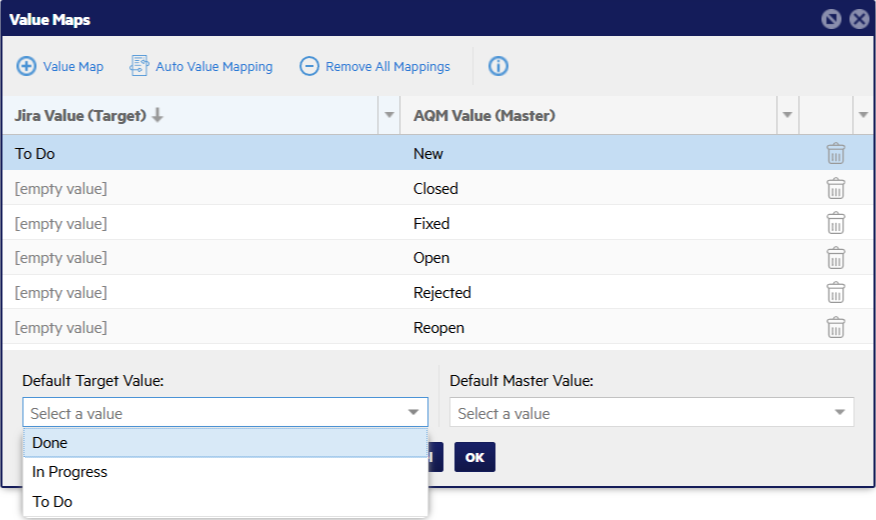
- Click the Edit value map button
 . The Value Maps dialog box opens.
 - Click Auto Value Mapping to allow automatic mapping of the field values, or + Value Map to map the values manually.
- On each row, select a value in the master's field to map to the corresponding value in the target's field.
- Select a value for the Default Target Value and Default Master Value from the dropdowns. These values are used for values that were not explicitly mapped.
- To reorder value mappings, click the up or down arrows in the Actions column.
- To remove value mappings:
- To remove a specific mapping, click the Delete icon in its row.
- To remove all value mappings, click Remove All Mappings.
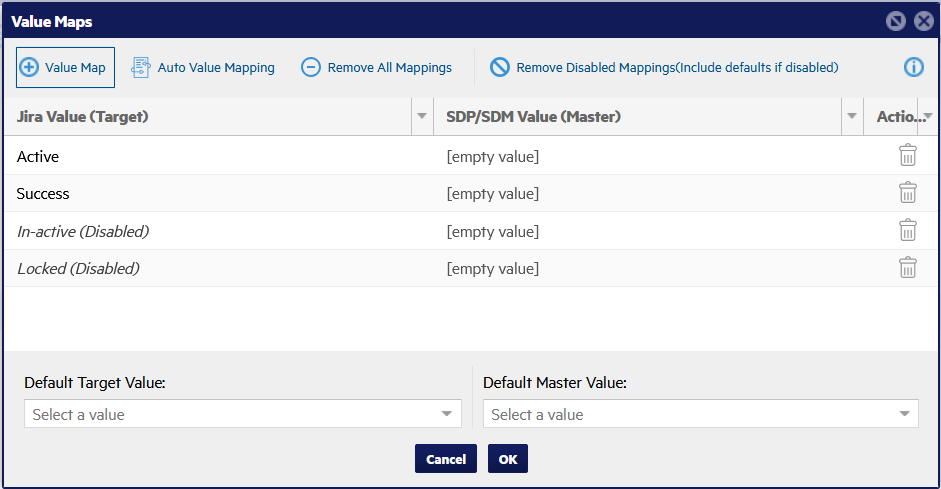
- To remove mappings for disabled enum fields in a Jira data source, click Remove Disabled Mappings. Mappings for disabled fields can interfere with synchronization. Disabled fields are marked Disabled in item rows.
Supported field type mappings
The following field type mappings are supported for Test entities in the connection wizard's Types and Fields page:
| Field type | Maps to types |
|---|---|
| datetime | datetime, richtext, string, date |
| boolean | boolean, richtext, string, enum |
| item | item, string |
| long | long, richtext, float, int, double, string, long |
| richtext | richtext, datetime, float, boolean, int, double, enum, date, string, user, long |
| float | float, richtext, int, double, string, long |
| int | int, richtext, float, double, string, long |
| double | double, richtext, float, int, double, string, long |
| attachment | attachment |
| comment |
comment Note: When synchronizing mapped comment fields, the synchronization engine automatically adds a header to the comment in the other endpoint, for supported connectors. This header lists the user who added the comment and the date it was added. The header is delineated with the "===" characters. For example, for a synchronization between an OpenText Software Delivery Management user story and a Jira story, a comment added to the user story, "===" "Inserted by ...: John 10:00 AM [Z] 03/02/2023" "===" "Please review this story" The following connectors can display the comment header: OpenText Software Delivery Management, Azure DevOps, Confluence Cloud, and Jira. The following connectors generate information that can be included in the comment header: OpenText Application Quality Management, OpenText Software Delivery Management, Azure DevOps, Confluence Cloud, and Jira. |
| enum | enum, richtext, enum, string, boolean |
| date | date, richtext, datetime, date, string |
| string | string, richtext, datetime, float, boolean, int, double, enum, date, string, user, long |
| user | user, string, richtext |
Map single-value to multi-value fields
This section describes the mapping of to single-value fields to multi-value fields.
For example, a field in Product A may have more values than its equivalent field in Product B. In this case, map more than one value in Product A to the same value in Product B.
| Product A | Product B |
|---|---|
| New | Open |
| In Progress | Open |
| Done | Closed |
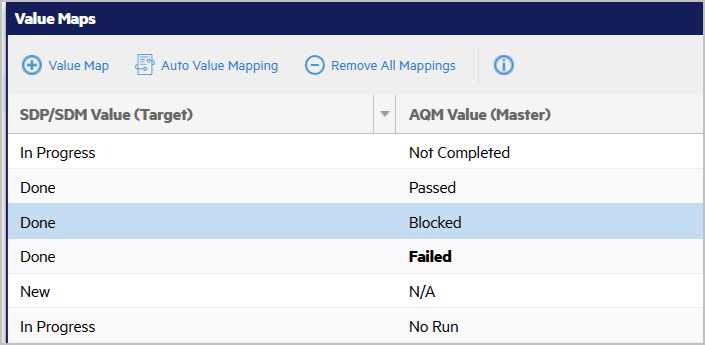
The example below shows value mapping between two projects in which the target has multiple fields corresponding to the fields in the master.
When changes are synchronized from Product B to Product A, the "Open" value in Product B translates to "In Progress" in Product A, not to "New".
Map multi-value to single-value fields
This section describes the mapping of multi-value fields to single-value fields.
When mapping a multi-value field to a single-value field, you can use a CSV conversion to merge multiple values into a single value, or to split a single value to multiple values. For details, see Map types manually.
CSV conversion applies only when the single-value field is a string-like field, such as a string or rich text field.
Multi-value to string conversion
By default, when you map a multi-value field to a single-value field, only the first element of the multi-value field is used.
When you select CSV conversion, the conversion packages all values in the multi-value field into a string, with values separated by commas.
For example, [One,Two,Three] is converted to "One, Two, Three".
String to multi-value conversion
By default, when you map a single-value field to a multi-value field, the conversion adds the value as a single element of a collection.
When you select CSV conversion, a comma-separated value is unpacked as a list of values.
For example, "One,Two,Three" is converted to [One,Two,Three].