
Share this page


Install a UNIX server only
Overview
-
There is already a local Oracle Enterprise with the schema. This is a binary only install.
-
You do not want to install any of the process model demo products.
-
You want to install a local server, with a local Oracle Enterprise RDBMS but without a schema, to communicate with a remote Windows or UNIX database.
A locally installed server is similar to an agent installation as it provides listener services and the dmcli command client. Common Tools are also installed. You may want to do this:
-
When the users on the local node do not have operating-system accounts on the remote database server.
-
To balance loads across both the local node and the remote database server node, as illustrated below.
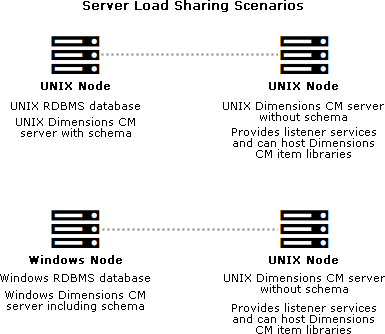
A remote database server is an RDBMS with a Dimensions CM schema installed. To enable network connections between the nodes the remote database server must be running the TNS listener. You may also need to set up an Oracle Net Service Name on the local node to access the Oracle database server. For details, see Remote Oracle Enterprise.
Install server only
-
Run the server installer. Read and accept the license agreement.
-
Select New Install.
-
Select Install All Dimensions CM Server Components.
-
Accept the default installation directory or choose a different one.
-
Select these installation components:
-
Server Core Files
Installs the server.
-
(Optional) Single Sign On (Required for Smart Cards)
Installs, or configures a connection to, an SSO server. Only required when using other products in collaboration with Dimensions CM or for smart card authentication support.
-
(Optional) Smart Card Setup
Configures remote Windows smart card client software and hardware authentication.
-
Common Tools
Selected by default (required by the server).
-
(Optional) Deployment Automation Server
Installs a Deployment Automation server.
Important: You must not install DA into a Serena-supplied Oracle runtime.
-
PulseUno
Installs PulseUno (required) and its modules (optional):
-
Git server: The server that PulseUno uses for Git repositories.
-
Vault server: The server that PulseUno uses for the library of software packages.
-
Note:
-
You cannot install a client or agent when installing a server.
-
For details about separating the database upgrade or migration operations from the server installation, contact Support.
-
-
(Optional) If you are not installing the PulseUno Git and Vault modules, configure the Git and Vault server connection.
Specify the host name and port number for the Git/Vault server. Optionally select the HTTPS option to enable HTTPS.
-
Select a licensing option:
-
Specify License Server
If the AutoPass License Server (APLS) is running on a remote machine, enter the URL of the remote machine.
If APLS is running on the same machine as the Dimensions CM server, accept the following localhost URL:
https://localhost:5814/autopass
For details about configuring Dimensions CM to use APLS, see Licensing.
-
Install a 30-day evaluation license
-
-
Enter the OS account name and password for the Dimensions CM system administrator. Default:
dmsys -
If you are installing a Deployment Automation server:
-
Accept the default installation directory or choose a different one.
-
(Optional if DA is already installed) Select Use existing settings.
-
(Optional) Select Skip database creation.
-
Specify the port number that Deployment Automation agents will use to make Java Message Service (JMS) connections to the server.
-
Select Client Mutual Authentication if you want Deployment Automation to use agent authentication when connecting to the server.
-
Specify a username and password for a new Deployment Automation database account to be created.
For details about installing and using DA, contact Support.
-
-
If you are installing an SSO server, select one of the following:
-
New: Install a new SSO server.
-
Existing: Configure a connection to an existing SSO server, for example, Solutions Business Manager (SBM).
-
-
If you are installing an SSO server and smart card, do one of the following:
-
Existing SSO server:Specify the SSO server’s host name and port. Optionally select a secure HTTPS connection.
-
New SSO server without smart card:
To configure LDAP details for user credentials, enter parameters for Hostname, Port, Base DN, Search Filter, Bind User DN, and Password.
Defaults:
Port:
389Search Filter:
(&(objectClass=user)(sAMAccountName={0}))For details about server SSO parameters, see Single sign-on prerequisites.
-
New SSO server with smart card:
-
To configure the LDAP connection for authenticating smart cards, enter parameters for Hostname, Port, Bind User DN, and Password.
Default port: 389
-
To configure LDAP details for user credentials, enter parameters for Hostname, Port, Base DN, Search Filter, Bind User DN, and Password.
Search Filter default:
(&(objectClass=user)(sAMAccountName={0})).For information about server SSO and smart card parameters, see Single sign-on prerequisites.
-
After the installation is complete, manually configure the smart card trusted certificate authorities. For details, see xxx.
-
-
Enter the host name of the Dimensions CM server.
- Specify the operating system user to own and run Tomcat and Java. This user is typically given restricted permissions and must exist before you start the installation.
Default:
dmsys -
Accept the default port number for the Tomcat server (8080) or enter a different one if it is in use. Some software is hard-coded to port 8080 and cannot be reassigned. For details, see Use TCP/IP ports.
-
Review the settings and click Install. The installer:
-
Creates uninstaller files in the directory
_uninst_maintlocated one level up from the root directory. A record of the installed products is created in/var/opt/serena/inventory. To uninstall you must use the uninstaller files in the_uninst_maintdirectory to ensure that the inventory is correctly updated. For details, see xxx.
-
Installs the Common Tools (Tomcat server, web client, and Administration Console).
When the installation is complete, click Finish.
-
Note: If you install a server on Linux 64-bit, you may see the following error:
There were errors installing the cm_typical libraries.
Consult the log files to verify if the error occurred. If not, you can safely ignore the message.
Server only post-installation tasks
Note: If you install a server with schema (see Install all server components), the following steps are performed atomatically.
-
If you are utilizing a remote Oracle containing the Dimensions CM schema, verify that the connection details for the remote database have been added to this Oracle file:
$ORACLE_HOME/network/admin/tnsnames.ora
-
For a local Oracle manually edit the following files:
$installdir/dmgvar.sh
installdir/dmgvar.csh
Add the following Oracle system information:
-
Oracle client home location (
ORACLE_HOME)
-
Oracle instant client home location (
ORACLE_HOME_IC)
-
Oracle client
SID(enclosed within double-quotes)
-
Oracle
TWO_TASKfor communicating with a remote database
Note: ORACLE_HOME and ORACLE_HOME_IC must point to a valid Oracle location.
-
-
Edit
$installdir/dfs/listener.datand set-dsnto be the<database>@<dsn>for the database containing the Dimensions CM schema. -
If you are installing against Oracle Enterprise, update
dm.cfgwith the correct DBIO library entry:-
Oracle 11gR2.0.3:
DBIO_LIBRARY libdbio_srv_oci8_11201.{so,sl}
-
Oracle 12c:
DBIO_LIBRARY libdbio_srv_oci8_12201.{so,sl}
Note: On AIX you can only connect using
libdbio_srv_oci8_12101. -
-
Run the Dimensions CM
dmpasswdutility for:-
The schema you are using, for example:
dmpasswd cm_typical@dim14 -add -pwd cm_typical
-
The system administrator, for example:
dmpasswd dmsys -add -pwd <dmsys_password>
For information on running
dmpasswd, see the Administration Guide. -



