Share this page


Deploy with on-premises LGs
This topic explains how to deploy load tests with on-premises load generators.
Select an on-premises machine
In the Load profile page, indicate where to run each script: Cloud or On-premises. For details, see Distribution logic.
The following steps describe how to assign on-premises load generators for your test.
To configure settings for on-premises locations:
-
Click the Load distribution button
 in the sidebar and select the On-premises tab.
 -
Click the Add from Assets button + to select load generators for your test, or the Create button * to add a new load generator. The load generator is added to the grid, showing its name, OS, connectivity status, and access key.
-
If required, manage the on-premises load generators in the list:
-
Click Refresh to check the current connectivity status of the selected on-premises load generator.
-
Click Edit to manage the details of the load generator machine. For details, see Load generator assets.
-
Click Delete to remove the selected load generators. This action removes the on-premises load generators from the test but not from Assets.
-
Click a column header to sort by that value.
-
-
Select an assignment method in the load test settings: Simple or Advanced. To use this capability, the Enable manual Vuser distribution for on-premises load generators option must be selected in Test settings. For details, see Configure test settings.
For information about the scheduling modes, see Scheduling modes.
Note: If you change the location of a script that is already assigned to a load generator, the script is automatically unassigned from the load generator.
Assign Vusers to load generators
You can assign the number of Vusers per load generator manually or automatically.
To manually assign the number of Vusers:
-
Click the Load distribution button
in the sidebar and select the On-premises tab. -
Select the relevant load generator.
-
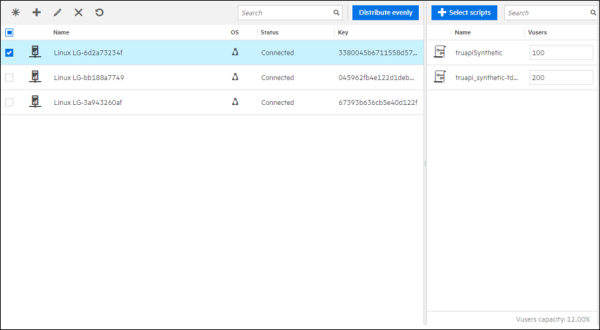
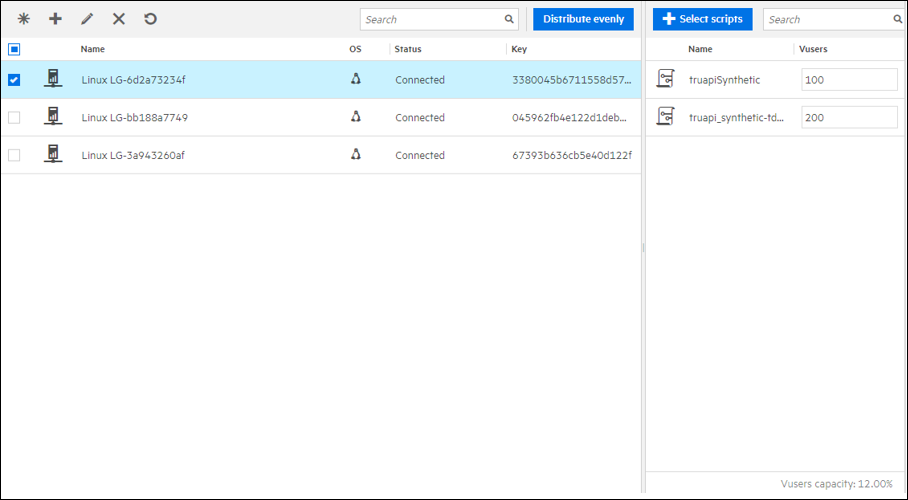
Enter the number of Vusers to assign in the box adjacent to the script name.
Note: Make sure that the number of Vusers that you assign to your script matches the total number of Vusers in your load test. For example, if the script has 500 Vusers, you must manually assign all 500. In addition, the number of Vusers defined in your test must not exceed the maximum number of Vusers defined in your Vuser license.
To automatically assign an equal amount of Vusers to your on-premises load generators:
-
Open the load test's Load distribution page and go to the On-premises tab.
-
Click Distribute evenly. OpenText Core Performance Engineering automatically distributes Vusers evenly over all assigned on-premises load generators, according to the script assignment configured in the test.
Apply simple assignment
With the Simple assignment method, you indicate which load test scripts run on which on-premises load generators.
In the Load distribution > On-premises page, the Assigned Scripts pane shows the scripts assigned to the selected load generator.
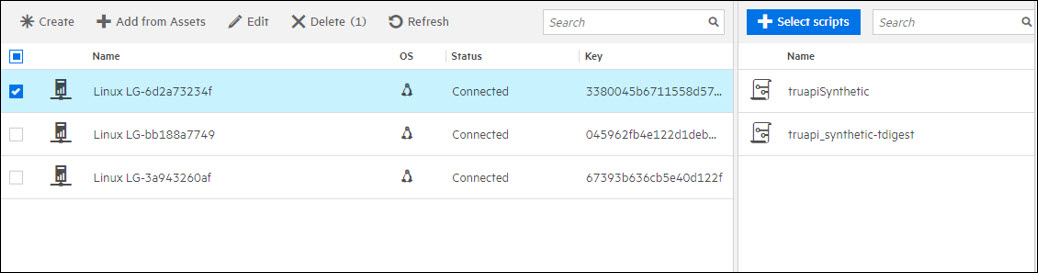
Click the Select scripts button + to assign or unassign scripts to the selected load generator. To assign a new script, select it and click OK. To unassign a script, clear its selection and click OK.
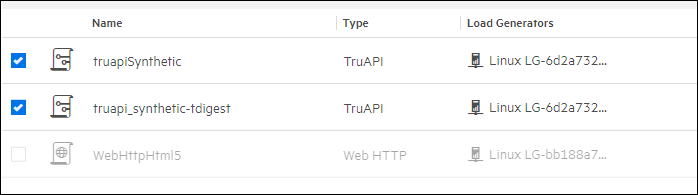
Note: When using the Simple assignment method, you can assign only scripts of the same type to a load generator. If a script is already assigned to a selected load generator, only scripts of the same type are available for assignment. Scripts of other types are unavailable.
Apply advanced assignment
When using the Advanced assignment method, you can assign multiple scripts of different types to a load generator. This gives you full control over how Vusers from different protocols are distributed.
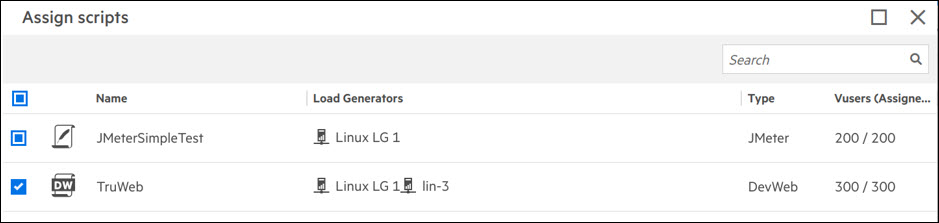
You can also set the number of Vusers per script to run on specific on-premises load generators. Before setting the number of Vusers, make sure to assign each script to a load generator, as described in Apply simple assignment.
After assigning the scripts, set the number of Vusers either manually or automatically. For details, see Assign Vusers to load generators.
Note:
-
If multiple protocols have been assigned to a load generator and you switch from Advanced to Simple mode, all assignments for that load generator are cleared.
-
If advanced scheduling is enabled for on-premises scripts and the total Vuser ramp-up is higher than the entitled license capacity, advanced assignment will not work.
View assigned Vusers
To see the number of Vusers assigned per script, click the Select scripts button + and refer to the Vusers column.

When assigning multiple scripts of different types to a load generator, hover over the Vusers capacity text to display the capacity and distribution ratio for each script type.
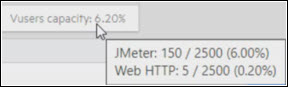
For protocols supported on OPLGs and the default and recommended limits, see the table in Cloud LG infrastructure capacity.
Vuser distribution guidelines
The following guidelines apply to Vuser distribution when using on-premises load generators:
-
The even distribution feature affects only Vusers for scripts assigned to the test's on-premises load generators.
-
You can manually adjust the distribution after the automatic calculation.
-
If a load generator is not limited to a number of Vusers less than its even portion, the even portion is assigned. For example, where both LG-1 and LG-2 are allowed to run 500 Vusers, the distribution is as follows.
Script name # of Vusers LG assignment # of Vusers running after clicking Distribute evenly Script-A 100 LG-1 100 on LG-1 Script-B 200 LG-2 200 on LG-2 Script-C 300 LG-1, LG-2 150 on both LG-1 and LG-2 -
If a load generator is limited to a number of Vusers less than its even portion, the maximum number of Vusers is assigned. For example, if LG-1 is allowed to run 30 Vusers and LG-2 500 Vusers (the even portion is 50; 100 Vusers divided by 2 LGs), the distribution is as follows.
Script name # of Vusers LG assignment # of Vusers running after clicking Distribute evenly Script-A 100 LG-1, LG-2 30 on LG-1 and 70 on LG-2 -
When assigning multiple scripts of different types to a load generator, the even distribution feature assigns Vusers as evenly as possible to all OPLGs. In doing so, it also takes the OPLG's total capacity into account.
LG \ Script TruClient-1 (Total 20 Vusers) Web-1 (Total 3000 Vusers) Total Capacity LG-1 0 2500 80.00% (2000/2500) LG-2 10 833 99.99% (10/15 + 833/2500) LG-3 10 167 73.35% (10/15 + 167/2500) In the example above, each LG is limited to a maximum of 15 TruClient Vusers or 2,500 Web Vusers. After assigning 20 TruClient Vusers to LG-2 and LG-3, it is no longer possible to evenly distribute 3,000 Web Vusers to all three LGs, because 10/15 + 1000/2500 ~= 107% on LG-2 and LG-3, which exceeds 100%.