Share this page


Designing performance tests
You design your performance test in the Performance Test Designer.
How do I open the Performance Test Designer?
You open the test designer as follows:
-
In the banner, click the module name or arrow and select Test Management > Tests & Scripts.
-
Select the test you created above, and click the Edit Test button on the toolbar. The Performance Test Designer opens.

How do I design the performance test?
From the Groups and Workload view in the Performance Test Designer, you perform the basic test design steps. You design the test as follows:
-
Assign a Controller to the test.
-
Click the dropdown arrow adjacent to the Controller box (in the Summary pane). The Select Controller dialog box opens.
-
Select Specific.
-
Select from the list the host machine that has been assigned the Controller and Load Generator (C+LG) purpose.
-
Add Vuser scripts.
-
In the Groups pane, click the Add Group button
 . The Add Group dialog box opens, displaying the Scripts tree with the script that you uploaded previously.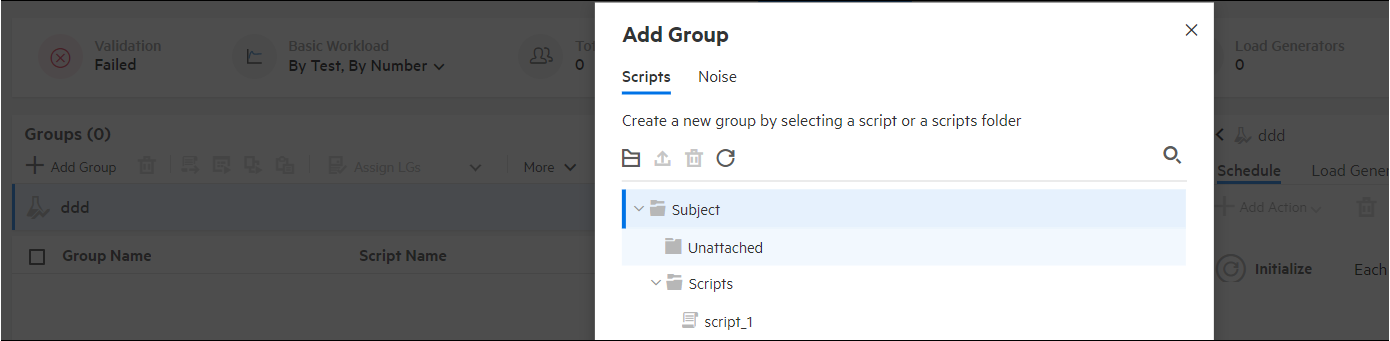
-
Select the script and click Add to add it to the test. The script appears in the Groups pane.
-
Add load generators.
-
From the Groups pane toolbar, click Assign LGs.
The Assign Groups to Load Generators dialog box opens.
-
In the Groups column, select the Vuser groups to use in the test.
-
In the Load Generators column, select the Specific tab, and from the list that appears, select the host machine that has been assigned the Controller and load generator (C+LG) purpose.
-
Click Apply Assignment.
-
Configure the schedule settings.
-
Initialize.
-
Start Vusers.
-
Duration.
-
Stop Vusers.

A schedule defines the actions of the Vusers for the performance test run, for example the behavior of 10 Vusers emulating 10 users simultaneously logging on to the same Web site.
Because typical users do not perform the same action simultaneously, the Scheduler allows you to schedule a performance test according to a more realistic portrayal of typical user behavior.
Define the schedule as follows:
In the Scheduler pane of the Groups and Workload tab, click in each of the schedule actions in the Actions grid and define them as follows:




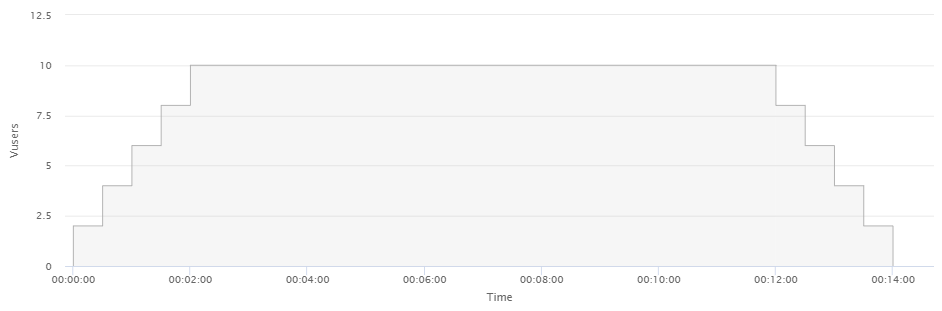
The schedule graph displays a graphical representation of the defined schedule. The lines in the graph correspond to the actions defined in the Actions grid.
How do I add the monitor profile to the test?
You add the monitor profile to the test as follows:
-
In the banner, click the module name or arrow and select Test Management > Tests & Scripts.
-
In the test management tree, select the test that you created in Creating performance tests and click Edit Test.
-
In the Performance Test Designer window, click the Assets tab and select Monitors.
-
Click the Assign Monitors button
 . From the Monitor tree, select the monitor profile and click Select & Close to add it to the test.
 Next steps: