Share this page


Monitoring performance tests
This lesson explains how to use online monitors to monitor performance test runs.
Monitoring overview
You monitor performance test runs using the OpenText Enterprise Performance Engineering online monitors. For example, you use the System Resource monitors to monitor a machine's system resource usage during a performance test and identify server performance bottlenecks.
A primary factor in a transaction's response time is its system resource usage. Using the resource monitors, you can monitor the Windows Resource usage on a machine during a test run, and determine why a bottleneck occurred on a specific machine.

What is a monitor profile?
To monitor server resources during the test, you select the type of monitors to run and the servers whose resources you want to monitor. You then add the measurements to monitor for each server. These monitor settings can be saved as a monitor profile which can be used by any performance test in your project.
The following section shows you how to create a monitor profile and how to add a Windows Resource Monitor to it.
How do I create a monitor profile?
You create and configure monitor profile as follows:
-
In the banner, click the module name or arrow and selectMonitors (under Assets).
-
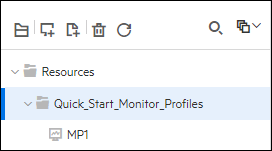
Create a folder for the monitor profile.
-
Select the folder, and click the New Monitor Profile button
 . The New Monitor Profile dialog box opens, enabling you to add a new monitor profile.
 -
Select Monitor Profile, and enter the required information and click OK to add the monitor profile to the folder.
-
In the Monitor Profile page, click the New Monitor button
 .
In the Add New Monitor page that opens, you can select the monitors that you want to run.
.
In the Add New Monitor page that opens, you can select the monitors that you want to run. -
Select the Windows Resources monitor type and click Next.
-
Enter the server details and then click Get Counters to display a list of available metrics and counters.
-
Select the measurements that you want to monitor, and then click the Add button
 to add the counters to the Selected Counters table.
 - Click Save. The monitor is added to your monitor profile.
You add the monitor profile to the test as part of the test design process.
 Next steps: