Configuration issues

This chapter provides troubleshooting for issues that arise during initial configuration.

Problem Troubleshooting

Server and/or host configuration fails

The server and/or host configuration fails with the following error: "Failed to configure user. Error: System.Runtime.InteropServices.COMException: The network path was not found."

To complete the configuration successfully:

  1. Open the HP.Software.HPX.ConfigurationWizard.exe file located in the <Installdir\LREConfiguratorWizard\ folder.

  2. Go to the <appsettings> section, and add the following:

    Copy code
    <configuration>
      <appSettings>
            ....
        <add key="SkipActionsException" value="AddUserToGroupStep" />
        <add key="SkipTestActionsException" value="AddUserToGroupStep" />
      </appSettings>
      ...
    </configuration>

Unable to configure server or host when the process is used by another process

After running the Server Configuration wizard, the following error is displayed in the log file: "The process cannot access the file 'C:\Windows\Microsoft.NET\Framework\v4.0.30319\config\machine.config' because it is being used by another process."

This problem occurs when the configuration updates the .NET machine.config file while it is in use by another process (for example, IIS). When the file is in use, the update fails.

Restart the machine and start the Server Configuration wizard.

Configuration host fails to start the Data Service

This problem occurs if the influxdb.exe process and the Host Configuration wizard are running at the same time.

Make sure the influxdb.exe process is not running before you run the Host Configuration wizard.

Service fails to start after successfully configuring the server

Increase the global timeout for the service startup in the Windows registry. By default, the timeout is 30000 milliseconds and the registry value does not exist.

  1. Open HKEY_LOCAL_MACHINE\SYSTEM\CurrentControlSet\Control in the Registry Editor.

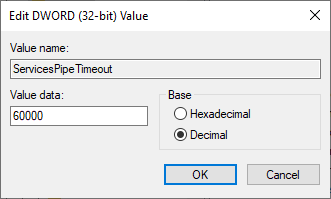
  2. Add a new DWORD value (name it ServicesPipeTimeout), set Base to Decimal, and enter a value of 60000 (equivalent to 60 seconds).

    Edit DWORD dialog box

Configure the server to work with Windows Firewall

Process / Service Direction Protocol Local Port Remote Port Path

World Wide Web Service
(HTTP Traffic-In)

Inbound

TCP

80

Any

Service

Remote Management Agent Service Inbound HTTP

3333

Any <Server_installdir>\AlAgent_Service\AlAgent.Service.exe
LRECoreAPI.exe Outbound TCP Any

Default ports: 1433 (MS SQL), 1521 (Oracle), 5432 (PostgreSQL)

Not Applicable
w3wp.exe Outbound TCP Any

8731

Not Applicable
w3wp.exe Outbound HTTP Any

8086, 3333

Not Applicable

Configure host to work with Windows Firewall

Process / Service Direction Protocol Local Port Remote Port Path

Remote Management Agent Service

Inbound

HTTP

3333

Any

Host_installdir>\AlAgent_Service\AlAgent.Service.exe

Agent Service Inbound TCP 54345, 50500 Any <Host_installdir>\ launch_service \bin\magentservice.exe
System Inbound TCP 8731 Any Not Applicable

Influxdb.exe

Inbound

HTTP

8086

Any

Host_installdir>\bin\influxdb\Influxdb.exe

LTOPSvc.exe Outbound TCP Any 80 <Host_installdir>\LTOPbin\LTOPSvc.exe

Change component port when default port in use

Component

Ports

Server IIS

To change the port for OpenText Enterprise Performance Engineering, refer to the IIS documentation.

Host

To change port 8731 to a different port:

  1. On each host, open LTOPSvc.exe.config located in <Host_installdir>\bin\LTOPbin\ and change all four occurrences of 8731 to a new port number. Restart the OpenText Performance Engineering Load Testing Service.

  2. On the server, open pcs.config (located in <Server_installdir>\dat\). Under PCSSettings, change ltopPortNumber to the new port number.

MI Listener

To change port 443 to a different port, perform the following steps on the following machines:

MI Listener or Controller machine if used as MI Listener:

  1. Open <Component_installdir>\launch_service\dat\mdrv.dat, and locate the [launcher] section.

  2. Add OFWPort=<port>, where <port> is the new port number.

  3. Go to <Component_installdir>\launch_service\dat\channel_configure.dat and locate the [General] section.

  4. Add OFWPort=<port>, where <port> is the new port number.

  5. Restart the agent.

To change the port on a Windows OneLG machine:

  1. Open C:\Program Files (x86)\OpenText\OneLG\config\m_agent_attribs.cfg, and add ServerPort=<port> to the Agent section.

  2. Restart the Agent Service.

To change the port on a Linux OneLG machine:

  1. Open the $M_LROOT/config/.mercury/m_agent_attribs_<hostname>.cfg file, and add ServerPort=<port> to the Agent section.

  2. Restart the daemon:

    ./m_daemon_setup -remove

    /m_daemon_setup -install

To change the port on a MOFW machine:

  1. Open C:\Program Files (x86)\OpenText\Monitors Over Firewall\config\m_agent_attribs.cfg, and add ServerPort=<port> to the Agent section.

  2. Restart the Agent Service.

Note: There is no support for changing port 50500.

LoadRunner Agent

To change the port for a Controller machine:

  1. Stop the OpenText Performance Engineering Agent Service.

  2. Open for editing the file: <installdir>\dat\merc_agent.cfg.

  3. Under the [Attributes] section, add the line: "AgentPort=<New Port Value>"

  4. Restart the service.

To change the port for a Load Generator machine:

  1. Stop the OpenText Performance Engineering Agent Service.

  2. Open the following file for editing: <installdir>\launch_service\dat\merc_agent.cfg.

  3. Under the [Attributes] section, add the line: "AgentPort=<New Port Value>"

  4. Restart the service.

Remote Management Agent Service

This service is used to perform administration tasks on all server machines. By default, the Remote Management Agent uses port 3333. The port number can be changed. However, the new value must be configured on each machine (server, host, Load Generator).

To change the port for the Remote Management Agent:

  1. Stop the OpenText Performance Engineering Remote Management Agent Service.
  1. Open <installdir>\AlAgent_Service\appsettings.json.
  1. Under the "ServiceWebConfiguration\Port" section, set the new port value.
  1. Restart the service.

To change the port on all OpenText Enterprise Performance Engineering servers.

  1. Open <installdir>\dat\PCS.config.

  2. Under the "configuration/appsettings" section, set the port value in the line "<RemoteManagementPort>port_value</RemoteManagementPort>".

  3. Restart IIS.

SiteScope (Monitor Profiles)

In the Performance testing application, change the port of the Monitor Profile entity to the same port as that defined during the SiteScope configuration.