Share this page


Storyboard window
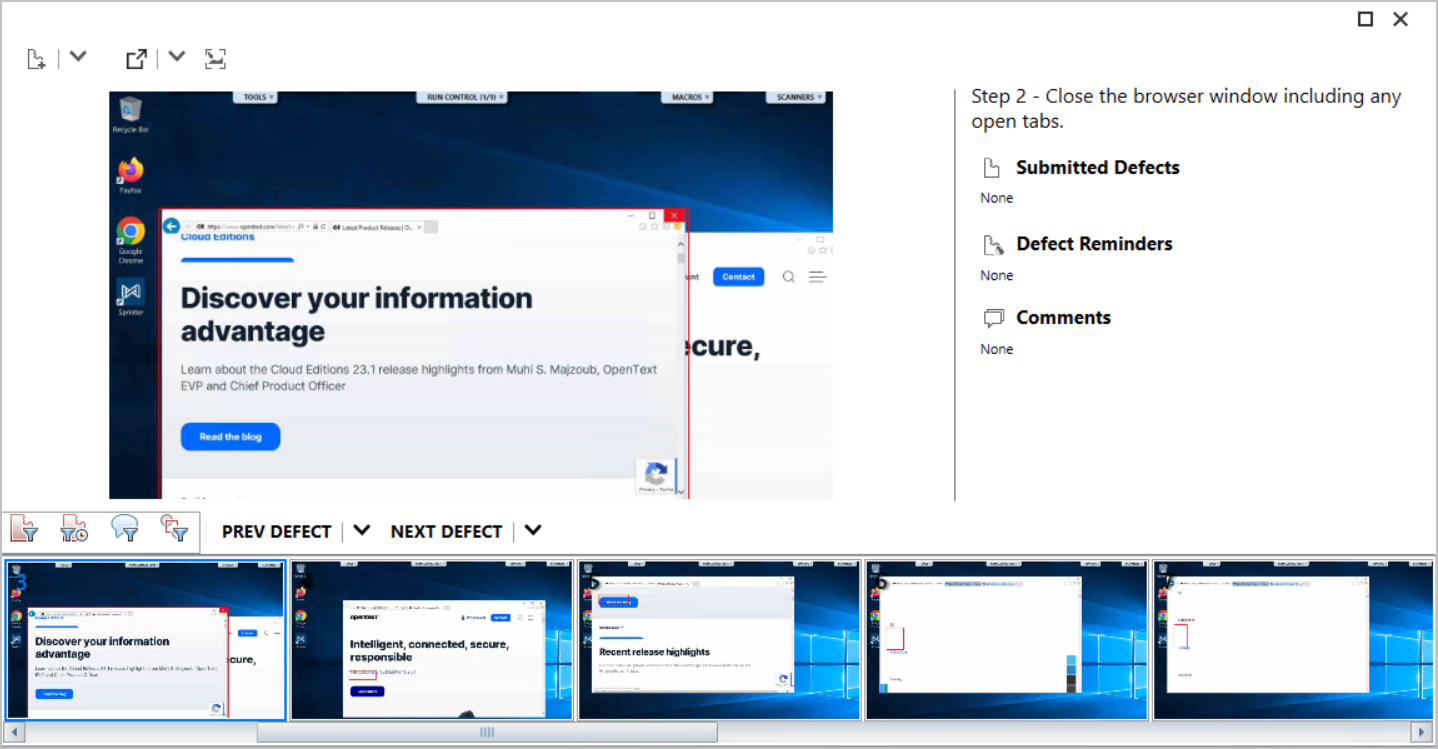
This Storyboard window displays information for each user action in your run.
Storyboard window overview
The Storyboard window serves as a timeline and a visual representation of the actions performed during the test. It allows you to:
-
View the description of each user action
-
View the defects submitted, defect reminders, comments, and differences found for each action.
-
Filter the displayed actions.
-
Export the storyboard to a PDF or Microsoft Word file.
To open the Storyboard window:
Do one of the following:
-
During a run, click Tools sidebar > Storyboard.
-
After a run, click the Storyboard button
 in the User Actions tab.
 -
Right-click a test in the My Runs List pane, and select Show All Runs. The All Runs dialog box opens. Click the Storyboard button.
Some actions may not have a corresponding screen capture. Screen captures are saved per-action based on your settings in the Run settings.

Storyboard user interface
User interface elements are described below (unlabeled elements are shown in angle brackets):
|
UI Elements |
Description |
|---|---|

|
Smart Defect. Enables you to submit a defect to OpenText Application Quality Management or your defect tracking system. Drop-down options:
When you create a defect from the Storyboard, the same information is available for you to include in the defect as is available when you open the defect during the run. You can include a screen capture of your application during your user action, and a list of the steps or actions in your test run. |

|
Export. A drop-down menu that lets you to export the storyboard to a Word or PDF file. This file contains the run summary, step status, and defect information for the run session. Note: If you want it to also include images, make sure to enable image captures in the Run area of the Settings dialog box before the run. For details, see Settings dialog box. For OpenText Application Quality Management users, if the Capture all images in a test option is disabled, your administrator can enable it for the project. In OpenText Application Quality Management, select Tools > Customize. In the Project Customization window, select the Sprinter node, and select the desired options in the Screen Captures section. For example, Enable Storing of all images during a test . |
  |
Maximize/Minimize Zooms in or out of the screen capture selected in the timeline. |
| <Action screen capture> |
Displays a screen capture of the action selected in the timeline. |
| <Action details> |
Displays the following (some of the fields are only visible for OpenText Application Quality Management connections):
|
| Timeline |
Displays a thumbnail view of each action in the run. Each thumbnail can contain any of the following icons indicating the details of the action:
|
| <Timeline filtering options> |
The Timeline contains the following filter buttons:
When you click a filter button, the timeline displays only those actions that contain the selected filter item. Click the filter button again to turn the filter off. |
| <Timeline navigation buttons> |
The Timeline contains the following navigation buttons:
If you filter the timeline, the Prev and Next buttons advance or return you to the next or previous action in the filtered list of actions. Drop-down options:
|
 A defect was submitted for this action.
 A defect reminder was created for this action.
 A comment was added to this action.
 Differences were found for this action.
 Filter Defects
 Filter Defect Reminders
 Filter Comments
 Filter Differences