Share this page


Set up data-driving steps (per framework)
This topic describes how to configure your test script to retrieve ALM data in NUnit, MSTest, TestNG, and JUnit.
NUnit
Configure your NUnit test script to retrieve ALM data.
-
In your NUnit project, change the [Test] attribute (above the test method) to:
- NUnit 2: [TestCaseSource("ALM")]
- NUnit 3: [TestCaseSource("ALMStatic")]
-
Define meaningful test method argument names. They must be identical to the to the test parameter names that you define in OpenText Application Quality Management.
[TestCaseSource("ALM")] public void Test1(string MyParam1, string MyParam2) { ... ... } -
Create your test content as with any other OpenText Functional Testing for Developers test.
- Build the project to create a test .dll.
The HTML report of a data driven OpenText Functional Testing for Developers test run includes one node for each iteration. Each node's label displays the actual values of the parameters for that iteration.
MSTest
Configure your MSTest test script to retrieve ALM data.
-
In OpenText Functional Testing for Developers:
In your MSTest project, after [TestMethod], add the [DataSource ("ALM")] attribute to the test method.
Access the test parameters using the TestContext.DataRow["valueA"] statement.
For example:
[TestMethod]
[DataSource("ALM")]
publicvoid TestAlm()
{
	var valueA = Convert.ToString(TestContext.DataRow["valueA"]);
	var valueB = Convert.ToString(TestContext.DataRow["valueB"]);
	Verify.AreEqual(valueA, valueB);
}
-
(Optional) Add the [Parameters( <parameter_names_list> )] attribute to the test method to:
- Provide test’s parameter names for the Test Export tool (see below)
- Customize the test name appearance in the OpenText Functional Testing for Developers run report (see below)
For example:
[TestMethod]
[DataSource("ALM")]
[Parameters("valueA", "valueB")]
publicvoid TestAlm()
{
	var valueA = Convert.ToString(TestContext.DataRow["valueA"]);
	var valueB = Convert.ToString(TestContext.DataRow["valueB"]);
	Verify.AreEqual(valueA, valueB);
}
Note:
- If the Parameters attribute is absent, all values of the current DataSource row will appear in the suffix of the Test Case name.
- If the Parameters attribute is present and contains the parameter names, only the values of those parameters will appear in the suffix of the Test Case name.
- If the Parameters attribute contains names that are not in the DataSource row, N/A will appear in report.
-
Build the project to create a test .dll.
TestNG
Configure your TestNG test script to retrieve ALM data.
-
In your TestNG test class, add the dataProvider="ALM" argument to the @Test annotation of test method:
@Test(dataProvider="ALM")
-
(Optional) Use the @Parameters({ <parameter_names_list> }) annotation to map the ALM test parameter names to the method arguments.
-
Each name defined in the parameter list must be identical to the parameter name defined in OpenText Application Quality Management
-
Each name defined in the parameter list must be mapped to the method argument by order. The first method argument must be mapped to the first @Parameters argument, and so on. The method argument names can be voluntary.
-
- Export the project to JAR.
Example:
@Test(dataProvider="ALM")
@Parameters({ "x", "y" })
public void test(String a, String b) throws Exception {
	Verify.areEqual(a, b, "MyVerify", String.format("%s == %s ?", a , b));
}
JUnit
Configure your JUnit test script to retrieve ALM data.
-
In your JUnit project, use the FTD JUnit Data-Driven Test Case class template to create the JUnit test class with ALM data-driving support.
Select New > Functional Testing For Developers > FTD JUnit Data-Driven Test Case and fill in the required fields in the wizard.
-
Define the parameters using one of the following methods:
-
(Recommended): Use the @Parameter annotations provided with the JUnit Data-Driven Test Case template
In the Data-Driving section of the template, add @Parameter(n) attributes for each parameter, each with an incremental index value, starting with 0.
Note: Always use the unique running number as an argument of the @Parameter annotation.
Give the parameters names that will be logical when they appear in OpenText Application Quality Management. The first parameter appears as your first parameter in the test, and so on.
For example:
@Parameter(0)
public String MyParamA;
@Parameter(1)
public String MyParamB;
-
Add a parameterized class constructor with the @ALM annotation
-
Add an import line for the datadriving.ALM package.
For example:
import com.hp.lft.unittesting.datadriving.ALM; -
Delete or comment out the @Parameter lines provided with the JUnit Data-Driven Test Case template:
//@Parameter(0)//public String MyParamA; //@Parameter(1) //public String MyParamB; -
In its place, paste the following code, and replace the MyParam* names with your actual parameters.
private String MyParamA;
private String MyParamB;

public DataDrivenTest1(@ALM(parameter = "MyParamA") String paramA, @ALM(parameter = "MyParamB") String paramB){
	this.MyParamA = paramA;
	this.MyParamB = paramB;
}
For example:
                                        private String username;
private String password;

public DataDriven(@ALM(parameter="username") String param1, @ALM(parameter="pw") String param2){
	this.username = param1;
	this.password = param2;
}
-
-
-
Customize the argument of the @Parameters annotation provided in the template. This name defines the node title that will be displayed for each iteration in the HTML run results report.
For example:
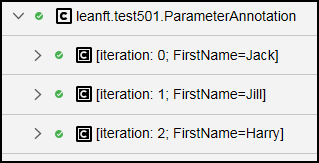
@Parameters(name = "iteration: {index}; FirstName={0}")where the FirstName parameter is defined in the class as @Parameter(2) (or as the 3rd parameter using the @ALM annotation).
The results would then look something like this:
-
Create your test method content in the @Test section as with any other OpenText Functional Testing for Developers test.
- Export the project to JAR.