Share this page


Create a JavaScript project in Visual Studio Code
In Visual Studio Code, on Windows, macOS, and Linux, you can create Jasmine or Mocha testing projects using the installed templates.
Prerequisites
Internet connectivity is required when creating projects.
Create a project
You can create a new project in VS Code using Functional Testing for Developers extension GUI or the Command Palette.
To create a project:
-
Do one of the following:
-
Select the Functional Testing for Developers extension in the Activity Bar and expand the Templates > JavaScriptmenu.
-
Open the Command Palette (Ctrl + Shift + P) and type >FTD: Create JavaScript Project.
-
-
Select the relevant template type (Jasmine or Mocha).
-
Enter a name for the new project.
-
Select a project location. By default, Visual Studio Code suggests the user's Documents folder if there is no open workspace. Otherwise, it suggests the open workspace.
Visual Studio Code template content
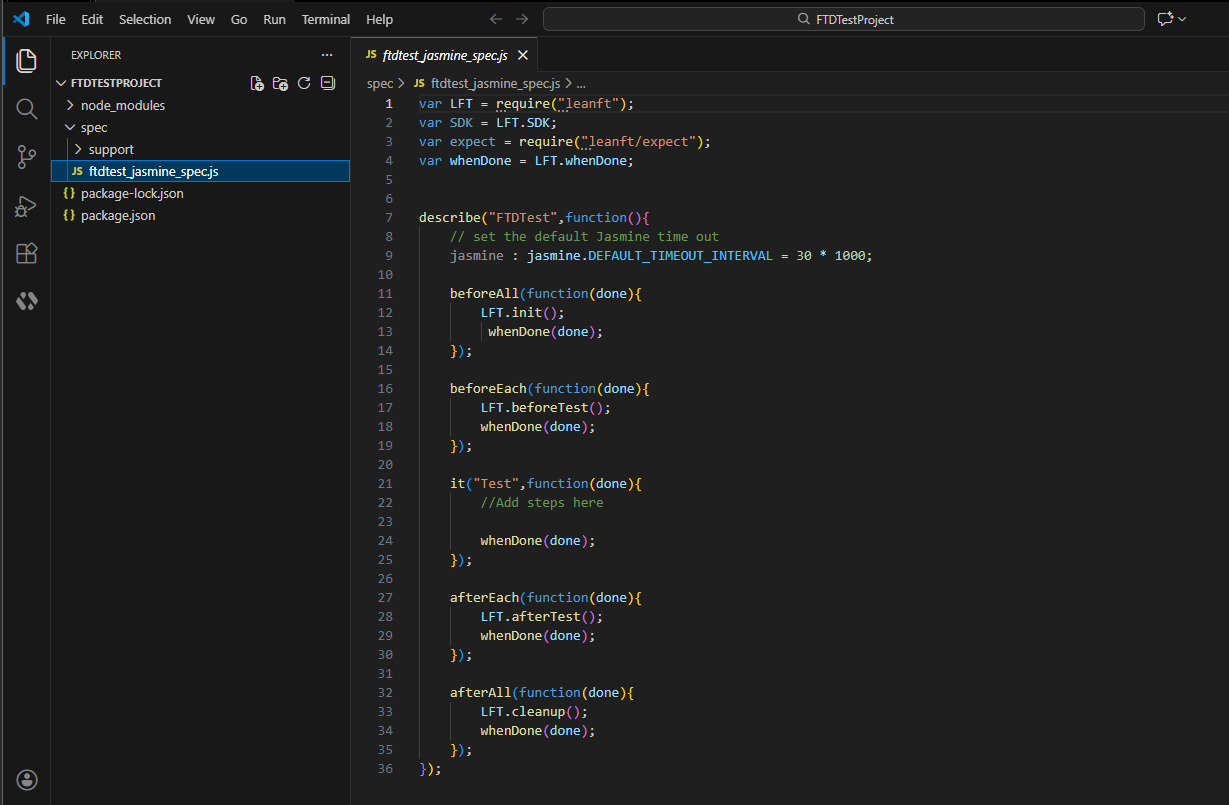
The Jasmine/Mocha FTD project templates include the following:
- package.json, which contains your project's settings, including the references to the SDK and the @hpe/leanft-mocha-runner / @hpe/leanft-jasmine-runner, and the script for launching tests.
- Node_modules folder, which contains the SDK, testing framework, and the SDK runner module. (npm installs this automatically.)
-
A basic ftdtest file template where you write your code.
You can include multiple tests in one file, and you can use the Object Identification Center or Test Recorder to help generate the code.
The exact structure of this template depends on whether you are using Jasmine or Mocha:
- In a Mocha project, test files are saved with the .js extension. You can save test files in any folder under your project.
- In a Jasmine project, test files are saved with the _spec.js extension and must be placed in the spec or test folder.
The template includes initialization hooks that control what happens during the different phases of your run:
- In Mocha projects, a before hook initializes the SDK engine and an after hook cleans up after execution completes.
- In Jasmine projects, a beforeAll function initializes the SDK engine and an afterAll function cleans up after execution completes.
- jsconfig.json - Optionally, you can create this file to customize test settings and enable IntelliSense support for JavaScript test objects and methods. For details, see Customize test settings.
Example: A new OpenText Functional Testing for Developers Jasmine project in Visual Studio Code:
For details on using the Mocha or Jasmine framework, see the official Mocha or Jasmine documentation.