Share this page


Run Control sidebar
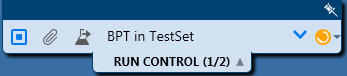
This sidebar enables you to set the status of your test and move between the different tests in the list of tests you are running.
| Option | Description |
|---|---|
| UI Example |
Sidebar without Power Mode options:
Sidebar with Power Mode options:
|
| To access |
To access:
To end the run and close the sidebar:
Tip: To lock the sidebar in the open position, click the thumbtack
|
| Related tasks |

 button.
 icon. To reposition the sidebar, click and drag on the sidebar header.
 User interface elements are described below (unlabeled elements are shown in angle brackets):
|
UI Elements |
Description |
|---|---|

|
|
  |
Pause/Resume Capturing. Pauses and resumes Sprinter from capturing each user action as it is performed.
|

|
Attachments (tests only). Opens the Run Attachments dialog box, enabling you to add, edit, or remove attachments in your run. |
 |
Next Test. Advances to the next test in the My Runs List pane.
|
| <Test list> |
The list of tests in your run. Each test in the list includes the date and time of the test and the test status. To move between tests, click the Previous Test or Next Test buttons, or click the down-arrow next to the test list and select a test. |
| <Test status> |
The status of the current test. You can modify the status of the current test by clicking the down-arrow next to the test status icon and selecting a status from the list. Status values: The status values include the following default system values as well as any user-defined status values:
|

|
End Run. Ends the testing session and returns to the Main Sprinter window. |
 User Actions. Displays the number of user actions performed in the current run.
 Passed. The test passed.
 Failed. The test failed.
 Blocked. The test is blocked.
 Not Completed. The test was paused in the middle.
 No Run. (Default selection) The test has not yet been run.
 N/A. Current status is not applicable.